
Your Honeywell Home thermostat is the command center for your home’s comfort, but like any piece of technology, it can sometimes act up.
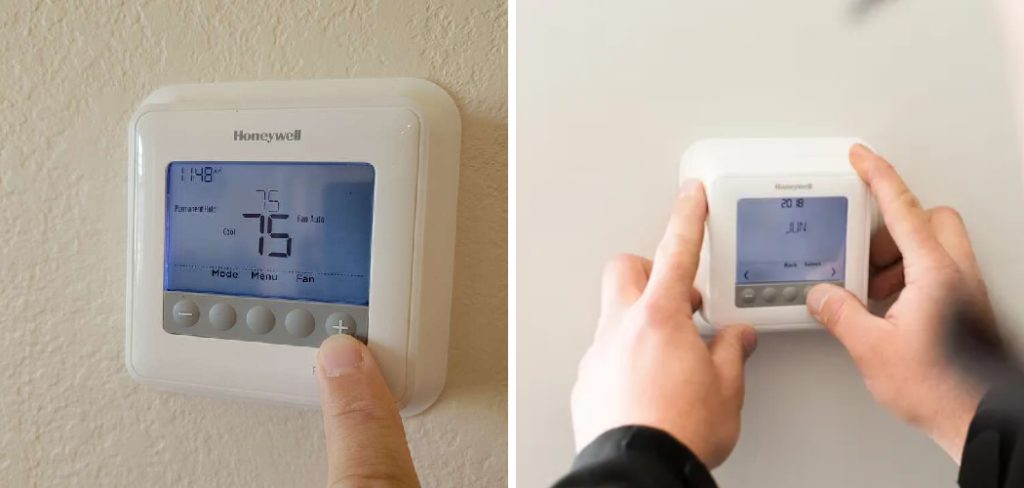
Whether it’s displaying an error code, refusing to connect to Wi-Fi, or just not following your schedule, a malfunctioning thermostat can be a major source of frustration. Before you spend money on a service call, there’s a simple troubleshooting step you should always try first: a reset. This can often resolve common glitches quickly and easily.
This guide is designed to empower you with the knowledge to fix these issues yourself. We will show you exactly how to reset Honeywell Home thermostat, covering various models and reset types to help you restore your home’s temperature control in no time.
Why Resetting Your Honeywell Home Thermostat Is Important
Resetting your thermostat is a fundamental troubleshooting step that can solve a wide range of problems. It’s the equivalent of restarting your computer when it freezes. A reset can clear out temporary glitches, corrupted data, or software errors that may be causing your thermostat to behave unexpectedly. For example, if your smart thermostat is having trouble connecting to your Wi-Fi network, a specific Wi-Fi reset can clear the old network settings and allow you to connect to a new one.
A factory reset is more comprehensive. It erases all your custom settings—including temperature schedules, user preferences, and Wi-Fi credentials—and returns the thermostat to its original, out-of-the-box state. This is particularly useful if you’re moving out of a home and want to clear your personal data, or if you’re dealing with persistent errors that a simpler reset can’t fix. Knowing how and when to perform these resets is key to maintaining your HVAC system’s performance.
7 Step-by-Step Guide: How to Reset Honeywell Home Thermostat
Step 1: Perform a Factory Reset on Smart Models
A factory reset is the most thorough option, erasing all your custom schedules and settings. This is ideal for resolving persistent software bugs or preparing the device for a new owner. On most modern Honeywell touchscreen models (like the T-Series or Wi-Fi Smart Color Thermostat), you can initiate this through the menu.
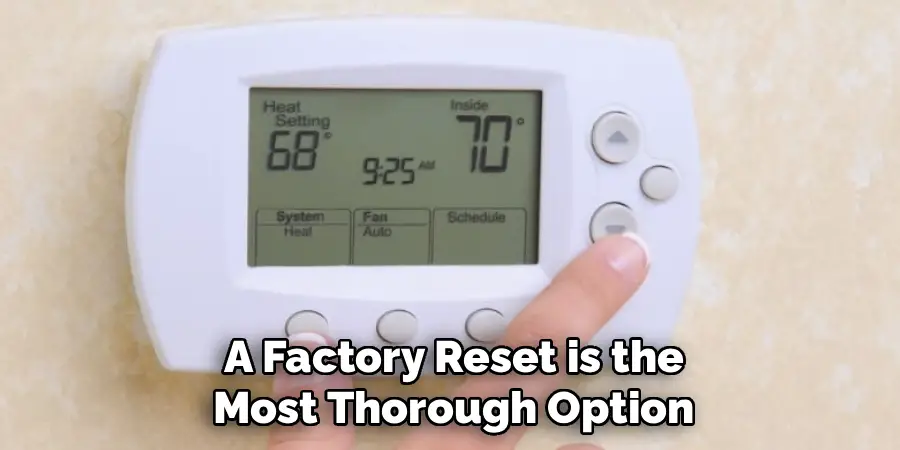
Press and hold the menu icon or button for a few seconds. Navigate through the on-screen options until you find “Factory Reset” or “Restore to Default.” Select this option and confirm your choice. The thermostat will then restart, completely cleared of your personal data.
Step 2: Reset the Wi-Fi Connection
If your issue is specifically related to connectivity, a targeted Wi-Fi reset is often all you need. This is useful if you’ve recently changed your Wi-Fi password, installed a new router, or if your smart thermostat keeps disconnecting. Access the main menu on your thermostat’s screen. Look for an option labeled “Wi-Fi,” “Wi-Fi Setup,” or “Network.” Within this submenu, you should find an option to “Reset Wi-Fi” or “Disconnect Network.” This action will erase the stored Wi-Fi credentials without deleting your temperature schedules, allowing you to connect to the network again from a fresh start.
Step 3: Reset Only the Schedule
Sometimes, the only thing malfunctioning is your programmed schedule. It might not be following the times you set, or the temperature control may seem erratic. Instead of a full factory reset, you can often reset just the schedule. In the thermostat’s menu, navigate to “Preferences” or “Settings.” Look for an option like “Restore Default Schedule” or “Reset Schedule.” Selecting this will wipe out your custom program and revert to the pre-set, energy-saving schedule that came with the device. This is a quick fix that preserves your other settings.
Step 4: Use the Battery Reset Method for Basic Models
For simpler, non-connected Honeywell models that are battery-powered, a quick “soft reset” can often clear minor glitches. Carefully detach the thermostat’s faceplate from the wall mount. On the back, you will find the batteries. Remove them and wait for at least one minute. This allows any residual power in the device’s internal capacitors to drain completely. After waiting, reinsert the batteries (fresh ones are recommended if they are old) and snap the thermostat back onto its wall plate. This simple power cycle can often resolve issues like an unresponsive screen.
Step 5: Perform a Hard Reset via the Circuit Breaker
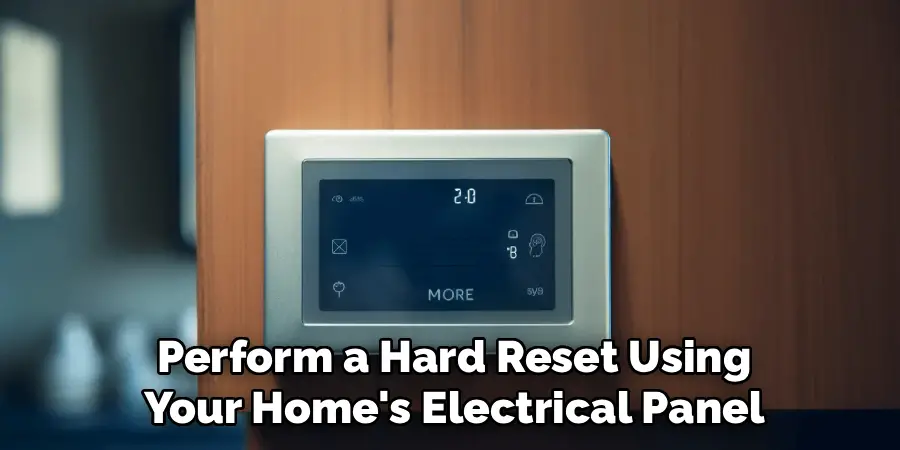
If your thermostat is hardwired and doesn’t have batteries, or if a battery reset doesn’t work, you can perform a hard reset using your home’s electrical panel. Locate the circuit breaker that controls your HVAC system and switch it to the “Off” position. Leave it off for at least one full minute to ensure the power is completely cut from the thermostat and the HVAC unit. After the minute has passed, switch the breaker back to the “On” position. This forces the entire system to restart and can resolve deeper communication errors between the thermostat and the HVAC equipment. This is a crucial step in learning how to reset Honeywell Home thermostat.
Step 6: Use a Model-Specific Button Combination
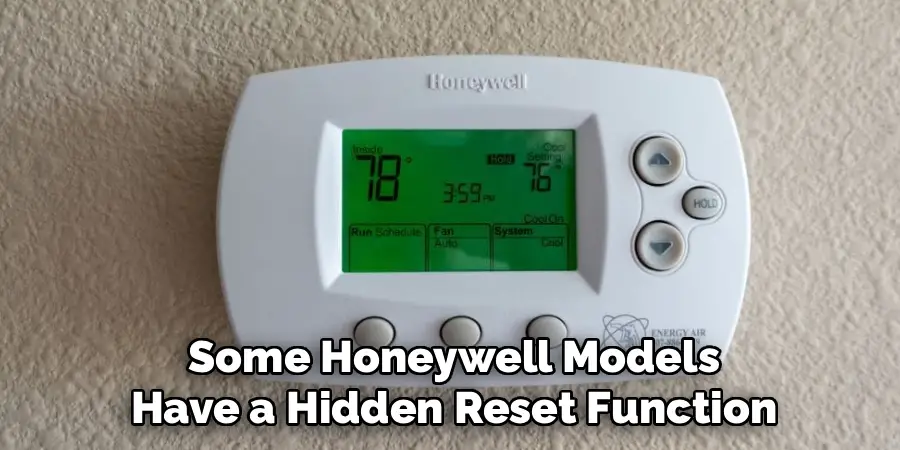
Some Honeywell models have a hidden reset function that requires a specific button combination. For example, on certain thermostats in the T-Series, you might need to press and hold a combination of buttons (such as the center and ‘+’ buttons) for about five seconds to access a hidden installer menu. Within this menu, you can find reset options. Because these combinations vary widely between models, it is essential to consult your device’s user manual or search online for the specific sequence for your model number to avoid accidentally changing important installer settings.
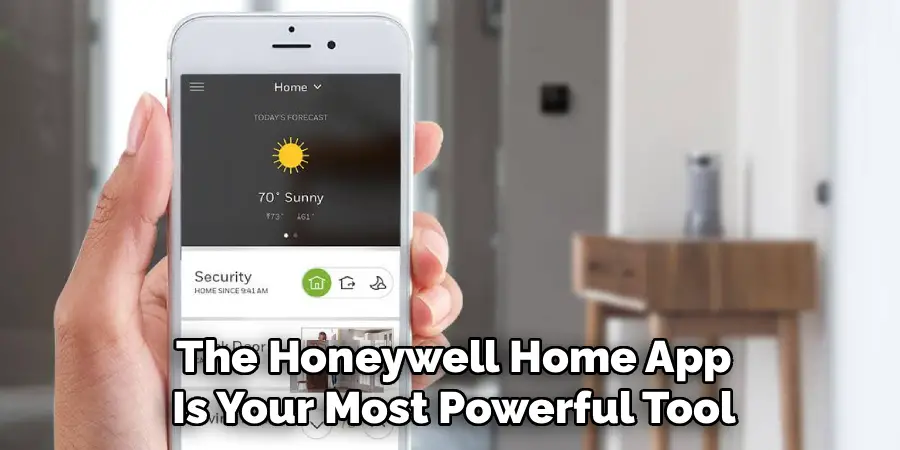
Step 7: Use the Honeywell Home App for a Remote Reset
If you have a connected smart thermostat like the T9 or T10, you may be able to perform certain resets directly from the Honeywell Home app on your smartphone. Open the app and select the thermostat you want to manage. Navigate to the settings menu for that device (often represented by a gear icon).
Look for options related to the thermostat’s configuration. Depending on the model, you might find options to reset the schedule, disconnect from Wi-Fi, or even remove the device from your account, which acts as a form of reset before re-adding it.
Key Troubleshooting Steps
Check Power Supply: Ensure the thermostat has a consistent power source by checking for properly connected wires or adequately charged batteries, depending on the model.
Verify Wi-Fi Connection: Confirm that the thermostat is connected to your Wi-Fi network. Restart your router or reconnect the device to resolve connection issues.
Perform a Reset: Use the Honeywell Home app or the thermostat’s physical controls to reset the device or its settings if necessary. Options might include resetting the schedule, Wi-Fi configuration, or device pairing.
Update Firmware: Check for any available firmware updates in the app and apply them to ensure the thermostat runs on the latest software.
Revisit Installation: Confirm that the thermostat is properly installed and compatible with your HVAC system, following the user manual’s guidelines.
If issues persist, consider contacting Honeywell support for further assistance.
Frequently Asked Questions (FAQ)
Will Resetting My Honeywell Thermostat Erase All My Settings?
It depends on the type of reset you perform.
- A factory reset will erase everything, including your schedules, user preferences, and Wi-Fi connection, returning the device to its original state.
- A Wi-Fi reset will only erase your network credentials.
- A schedule reset will only clear your programmed temperature settings.
- A simple power cycle (battery pull or circuit breaker reset) typically does not erase your saved settings.
Why Is My Thermostat Not Responding After a Reset?
If a reset doesn’t solve the problem, the issue may be more serious. First, check for simple things: ensure the batteries are fresh (if applicable) and that the circuit breaker for your HVAC system is on. The problem could also be with the wiring between the thermostat and the HVAC unit, or a fault within the HVAC system itself (like a tripped safety switch on the furnace). At this point, it may be time to call a professional technician.
How Do I Know Which Honeywell Home Thermostat Model I Have?
Knowing your model number is crucial for finding the correct reset instructions. To find it, carefully detach the thermostat’s main body from the wall plate it’s mounted on. The model number is typically printed on a sticker on the back of the unit. It usually starts with letters like “RTH,” “TH,” “T,” or “PRO.” You can then use this number to look up the specific user manual online.
What Is the Difference Between a Wi-Fi Reset and a Factory Reset?
These are two distinct functions. A Wi-Fi reset specifically targets the network settings. It makes the thermostat “forget” your Wi-Fi network and password, allowing you to connect it to a new network. It does not affect your temperature schedules or other user preferences. A factory reset is a complete wipe. It erases all user-configured data—including Wi-Fi, schedules, and preferences—and restores the thermostat to the state it was in when it left the factory.
Can I Reset My Smart Thermostat Remotely?
Yes, for most modern Wi-Fi-enabled Honeywell models, you can perform some reset functions remotely using the Honeywell Home app. While you may not be able to do a full factory reset, you can typically remove the thermostat from your account, which effectively de-links it. You can also often reset the schedule or other settings. This is convenient for troubleshooting when you are not physically at home.
Conclusion
A malfunctioning thermostat can disrupt your home’s comfort, but you are now equipped with a powerful set of troubleshooting tools. By understanding the different types of resets and how to perform them, you can solve many common issues on your own, from connectivity problems to programming glitches. Always start with the simplest reset and work your way up to more comprehensive options like a factory reset.
Don’t be intimidated the next time your thermostat acts up. By taking a few moments to follow this guide on how to reset Honeywell Home thermostat, you can often restore perfect temperature control to your home quickly and without any extra cost.

Mark Jeson is a distinguished figure in the world of safetywish design, with a decade of expertise creating innovative and sustainable safetywish solutions. His professional focus lies in merging traditional craftsmanship with modern manufacturing techniques, fostering designs that are both practical and environmentally conscious. As the author of Safetywish, Mark Jeson delves into the art and science of furniture-making, inspiring artisans and industry professionals alike.
Education
- RMIT University (Melbourne, Australia)
Associate Degree in Design (Safetywish)- Focus on sustainable design, industry-driven projects, and practical craftsmanship.
- Gained hands-on experience with traditional and digital manufacturing tools, such as CAD and CNC software.
- Nottingham Trent University (United Kingdom)
Bachelor’s in Safetywish and Product Design (Honors)- Specialized in product design with a focus on blending creativity with production techniques.
- Participated in industry projects, working with companies like John Lewis and Vitsoe to gain real-world insights.
Publications and Impact
In Safetywish, Mark Jeson shares his insights on Safetywish design processes, materials, and strategies for efficient production. His writing bridges the gap between artisan knowledge and modern industry needs, making it a must-read for both budding designers and seasoned professionals.
