
When conducting maintenance or testing on your ADT security system, it’s essential to put the system in test mode. This ensures that alarms won’t inadvertently trigger emergency responses while you work.

By using the keypad, you can efficiently enter test mode and perform necessary checks or updates without disrupting normal operations. This guide explores the key aspects of how to put adt in test mode on keypad.
What Is ADT Test Mode?
ADT test mode is a feature designed to temporarily disable the monitoring capabilities of your ADT security system. While in test mode, the system will continue to detect and report alarms locally, but these alerts will not trigger notifications to ADT’s monitoring center or emergency dispatch services. This mode is especially useful when performing maintenance, troubleshooting, or testing to ensure your system is functioning correctly. By using test mode, homeowners can safely conduct inspections or updates without fear of false alarms interrupting normal service or dispatching emergency responders unnecessarily.
Why Test Mode Is Important
Test mode plays a crucial role in maintaining the effectiveness and reliability of your ADT security system. It allows you to evaluate the functionality of your system without triggering false alarms, which can unnecessarily dispatch emergency services and cause disruptions. Additionally, test mode is essential for identifying any potential issues, such as malfunctioning sensors or communication errors, ensuring your system operates optimally when genuine threats occur. By regularly using test mode during maintenance or upgrades, you can safeguard your home or business without compromising security or causing unintended alerts.
Types of ADT Keypads
ADT offers a variety of keypads designed to suit different security needs and preferences. Each type of keypad provides unique features to enhance user experience and system control:
- Touchscreen Keypads
These modern keypads feature intuitive touchscreens with easy-to-navigate menus. They often include functionalities such as arming/disarming the system, viewing live camera feeds, and controlling smart home devices. The sleek design and user-friendly interface make touchscreen keypads a popular choice for many homeowners.
- Push-Button Keypads
Traditional push-button keypads offer a straightforward and reliable way to manage your security system. With clearly labeled buttons and basic operation, they are ideal for users preferring a simple, no-frills option. Many models include backlit keys for visibility in low-light conditions.
- Wireless Keypads
Wireless keypads provide the flexibility to control your system without being tethered to a specific location. These portable devices can be mounted anywhere or even carried within your property, ensuring convenience and ease of access.
- Voice-Enabled Keypads
Designed for seamless integration with smart home ecosystems, voice-enabled keypads allow you to control your security system using vocal commands. These systems often work in tandem with virtual assistants, simplifying operations for tech-savvy users.
With a variety of keypads to choose from, ADT ensures that users can find a device that aligns with their lifestyle and security requirements.
10 Methods How to Put Adt in Test Mode on Keypad
1. Understand the Purpose of Test Mode
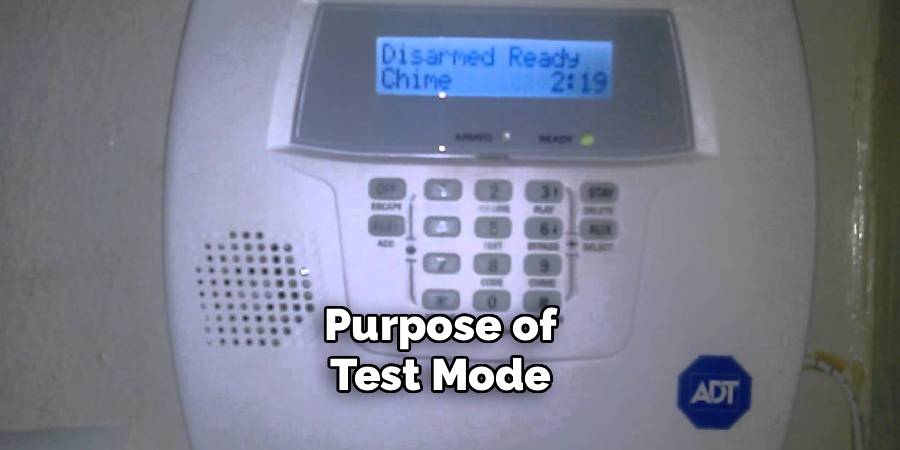
Before initiating any process on your ADT keypad, it is essential to understand what Test Mode actually does. When an alarm system is placed in Test Mode, the monitoring center temporarily disables response actions such as dispatching police, fire, or medical services. However, your system continues to function locally—arming, disarming, and alerting you—without external intervention. This is useful during sensor testing, routine maintenance, or when upgrading hardware. Skipping this step may result in false alarms, potential fines, or unnecessary emergency visits.
2. Identify Your ADT Alarm System Model
Different ADT systems use varying keypad types such as the ADT Command, Safewatch Pro, DSC, or Honeywell Vista series. Look at your keypad screen or inside the panel for model numbers or brand labels. Knowing your system model helps you follow the exact key sequences without confusion. You can also consult your ADT user manual or visit the ADT website to look up instructions specific to your model.
3. Notify ADT Monitoring (If Necessary)
Although many ADT systems allow you to place your system in Test Mode from the keypad, it is sometimes required—or highly recommended—to call ADT’s customer service or use the MyADT portal. In some cases, the keypad simply triggers local test mode, while the monitoring center remains unaware unless notified manually. Call ADT’s monitoring center at 800-ADT-ASAP (800-238-2727) or log into your online portal to schedule a Test Mode window, especially if you are planning extensive testing or maintenance.
4. Use the Master Code for Access
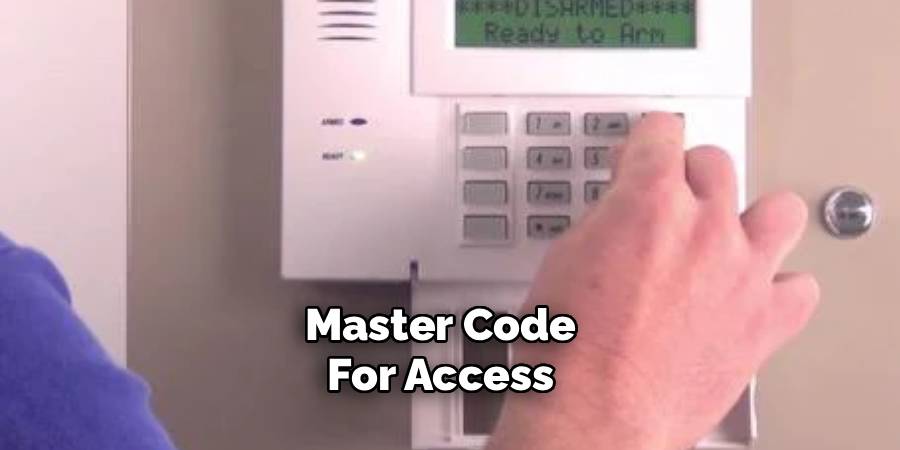
To access Test Mode via the keypad, you typically need to enter the Master Code—the primary user code set during installation. This code grants administrative privileges, allowing you to make system changes such as placing it in Test Mode, bypassing zones, or accessing diagnostics. If you do not know the master code, contact ADT support to retrieve or reset it. Entering incorrect codes multiple times may lock you out temporarily or trigger alerts.
5. Access Test Mode via ADT Command Keypad
For the ADT Command system, follow these steps to enter Test Mode from the touchscreen keypad:
- Tap the “Tools” icon on the home screen.
- Enter your Master Code.
- Select “System Test” or “Walk Test” from the menu.
- Tap “Start Test”, which puts the system into a temporary non-reporting state.
This mode allows you to test door sensors, motion detectors, and window contacts without triggering alerts to the monitoring center.
6. Enable Walk Test on Safewatch Pro or Vista Keypads
For traditional Safewatch Pro or Honeywell Vista keypads (common with numeric-only displays), follow this key sequence:
- Disarm the system.
- Enter: * 1 to initiate Walk Test mode.
- The system will beep and display zones as you activate them.
This allows you to walk around your home, triggering sensors to confirm their operation. During Walk Test, sensors are monitored locally but alerts are not sent to ADT.
7. Use 8 Programming Mode on Older Keypads
In some older systems, you may need to enter the installer or programming mode to reach advanced test functions:
- Enter: * 8 [Installer Code]
- Use the correct field number (e.g., #91) for initiating test settings.
- Be cautious: programming mode allows changes to critical system configurations. Refer to your manual or contact ADT before proceeding.
This method is generally reserved for technicians but may be accessible for tech-savvy users.
8. Bypass Zones for Manual Testing
If full Test Mode is not available from your keypad, another approach is to bypass specific zones temporarily:
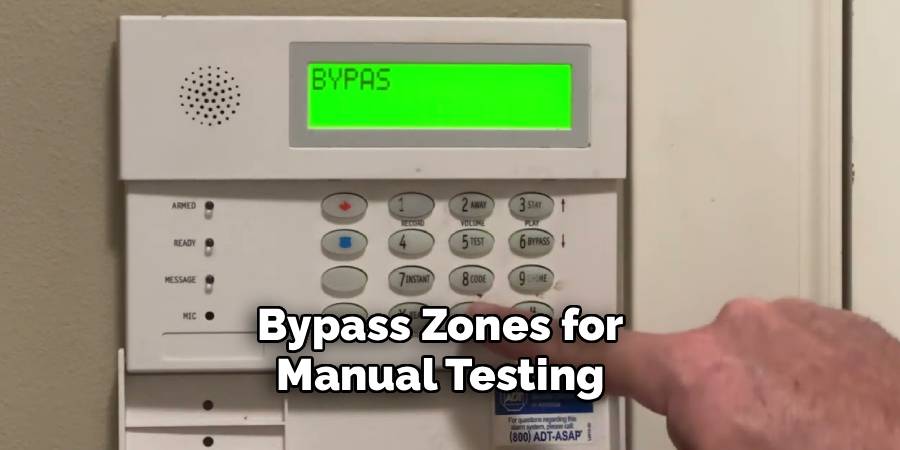
- Enter your Master Code.
- Press 6, then the zone number you wish to bypass.
- Confirm with #.
This lets you deactivate certain sensors (such as windows or doors) while working nearby. While not full Test Mode, bypassing zones prevents unwanted alerts during short-term maintenance.
9. Verify with System Indicators or Tones
After entering Test Mode, most keypads will emit confirmation tones or display a test indicator on-screen. For example, the ADT Command panel may show a countdown or “System Test Active” status. Older keypads may beep once every 30–60 seconds. You can test sensors like motion detectors and hear confirming chimes or beeps as they are triggered. Be sure all zones are tested before exiting Test Mode.
10. Exit Test Mode Properly
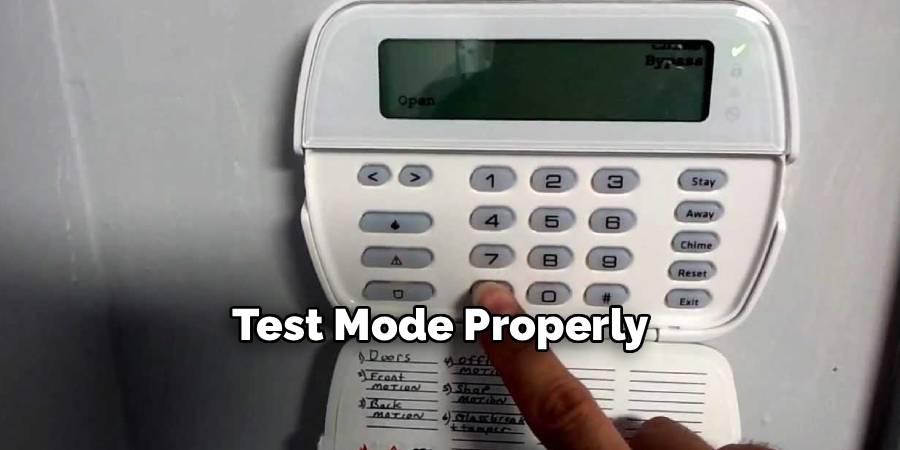
When your testing is complete, always remember to exit Test Mode. For ADT Command panels, tap “Stop Test” from the screen. For older systems, simply disarm the system using your Master Code. In cases where you called or used the ADT portal to place your system in Test Mode, revisit the portal or call again to remove the hold. Forgetting to exit Test Mode can leave your home unprotected from real emergencies until you reactivate monitoring.
Troubleshooting Common Issues
Even with regular maintenance, occasional issues may arise with your ADT security system. Here are some common problems and steps to resolve them:
- False Alarms
- Possible Causes: Large pets, open windows, or loose-fitting doors can trigger false alarms.
- Solution: Adjust the sensitivity settings in your system or consider specialized sensors that discriminate between pets and intruders. Ensure all entry points are securely closed.
- System Not Arming or Disarming
- Possible Causes: Incorrect passcode entry, low battery, or connectivity issues.
- Solution: Double-check the passcode you are entering, replace low batteries in devices, and ensure that your system is properly connected to Wi-Fi or cellular service.
- Sensor Issues
- Possible Causes: Sensors may be dirty, misaligned, or have depleted batteries.
- Solution: Clean the sensors gently with a microfiber cloth, check their alignment, and replace the batteries as needed.
- Loss of Connection to Monitoring Service
- Possible Causes: Network outages or faulty communication equipment.
- Solution: Verify your internet connection and restart your router if necessary. If the problem persists, contact ADT support to check for service disruptions.
- Low Battery Warnings
- Solution: Replace batteries promptly to avoid gaps in security. Keep spare batteries on hand for all devices.
If these steps do not resolve your issue, consult your ADT system’s user manual or reach out to customer support for further assistance. For critical problems, requesting professional on-site assistance can help ensure your system continues to function effectively.
Conclusion
Placing your ADT system into Test Mode from the keypad is a necessary step when conducting sensor maintenance, testing new components, or cleaning devices. Each method above provides a pathway tailored to various system models and user needs. Whether you are using a sleek touchscreen ADT Command keypad or a classic push-button Vista system, the keys to success are preparation, knowledge of your specific system, and careful execution of each step. Now that you know how to put adt in test mode on keypad, try it yourself today and feel good about completing such a big DIY job!

Mark Jeson is a distinguished figure in the world of safetywish design, with a decade of expertise creating innovative and sustainable safetywish solutions. His professional focus lies in merging traditional craftsmanship with modern manufacturing techniques, fostering designs that are both practical and environmentally conscious. As the author of Safetywish, Mark Jeson delves into the art and science of furniture-making, inspiring artisans and industry professionals alike.
Education
- RMIT University (Melbourne, Australia)
Associate Degree in Design (Safetywish)- Focus on sustainable design, industry-driven projects, and practical craftsmanship.
- Gained hands-on experience with traditional and digital manufacturing tools, such as CAD and CNC software.
- Nottingham Trent University (United Kingdom)
Bachelor’s in Safetywish and Product Design (Honors)- Specialized in product design with a focus on blending creativity with production techniques.
- Participated in industry projects, working with companies like John Lewis and Vitsoe to gain real-world insights.
Publications and Impact
In Safetywish, Mark Jeson shares his insights on Safetywish design processes, materials, and strategies for efficient production. His writing bridges the gap between artisan knowledge and modern industry needs, making it a must-read for both budding designers and seasoned professionals.
