
Your Honeywell Home thermostat is the command center for your home’s climate, but simply turning it on is just the beginning. To achieve true comfort and efficiency, you need to understand its various functions. Whether you have a simple digital model or a feature-rich smart thermostat, knowing how to adjust the settings correctly can make a significant difference in your daily life and your energy bills. Many users miss out on key features that could save them money and improve their home’s environment.
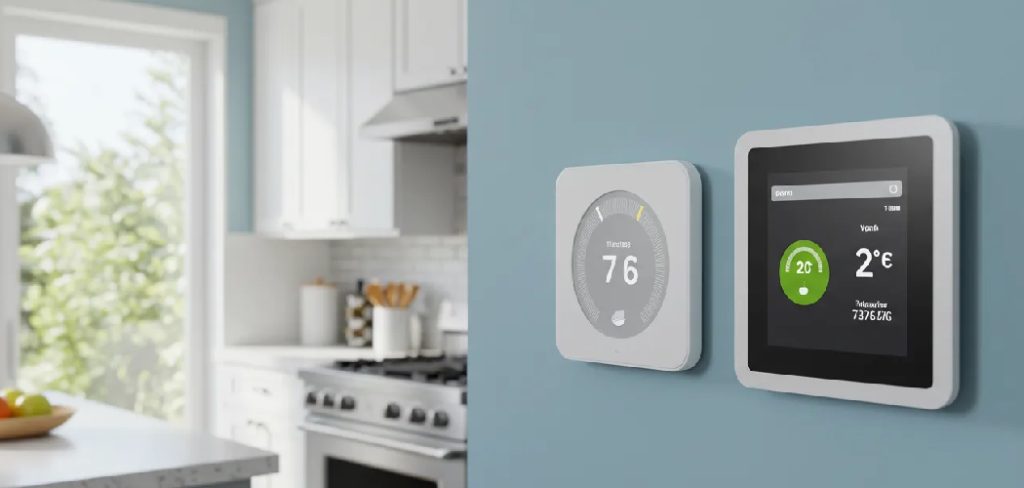
This guide will demystify the process and provide you with clear, actionable steps. We will show you exactly how to set Honeywell Home thermostat temperature using different methods, from manual adjustments to smart, automated schedules, ensuring you can tailor your home’s climate perfectly to your needs.
Why Setting Your Thermostat Correctly Matters
Properly setting your thermostat temperature is about more than just feeling comfortable; it’s a critical component of managing an efficient and healthy home. The right settings can lead to significant energy savings. According to the Department of Energy, you can save as much as 10% a year on heating and cooling by simply turning your thermostat back 7°-10°F for 8 hours a day from its normal setting. This simple adjustment reduces the workload on your HVAC system, which translates directly into lower utility bills.
Beyond cost savings, correct temperature control also contributes to the longevity of your HVAC system. By avoiding drastic and frequent temperature swings, you reduce the strain on the system’s components, which can lead to fewer breakdowns and a longer operational life. A well-managed thermostat provides consistent comfort, prevents unnecessary wear and tear on your equipment, and helps you run a more energy-efficient household.
7 Step-by-Step Guide: How to Set Honeywell Home Thermostat Temperature
Step 1: Make a Manual Temperature Adjustment
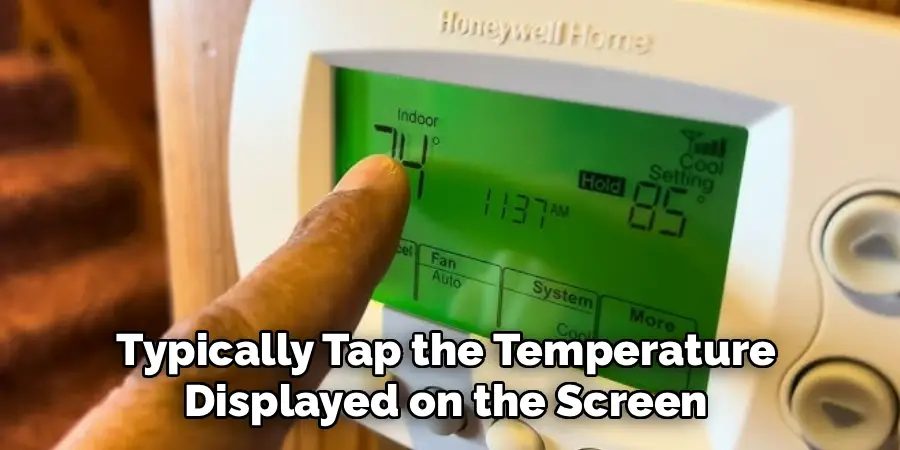
The most direct way to change the temperature is through manual adjustment. On most non-programmable or basic programmable Honeywell models, you will find physical up and down arrows. Simply press the up arrow to increase the temperature setpoint or the down arrow to decrease it. On modern touchscreen models, you can typically tap the temperature displayed on the screen and then use “+” and “–” icons to make your adjustment. This action creates a temporary hold, overriding any existing schedule until the next programmed time period begins, giving you immediate temperature control.
Step 2: Set a Temporary or Permanent Hold
If you manually adjust the temperature on a programmable thermostat, it will revert to the schedule at the next time point. To prevent this, you can use the “Hold” feature. After setting your desired temperature, look for a “Hold” button on the screen or device. Pressing it once may initiate a temporary hold, keeping the new temperature for a set number of hours. On many models, pressing it again will activate a “Permanent Hold,” which maintains your chosen temperature indefinitely until you manually press “Cancel” or “Run Schedule.” This feature is perfect for days when your routine changes unexpectedly.
Step 3: Create or Edit a Programmed Schedule
For consistent energy savings, using a programmable thermostat schedule is key. Access the “Schedule,” “Program,” or “Menu” button on your device. From there, you can typically set different temperatures for four distinct periods: Wake, Leave, Return, and Sleep. You can customize these settings for weekdays and weekends to match your lifestyle. Setting a more energy-efficient temperature for times when you are away from home or asleep is one of the most effective ways to manage your HVAC system’s energy consumption without sacrificing comfort.
Step 4: Use the Honeywell Home App for Remote Control
If you own a Wi-Fi-enabled smart thermostat, the Honeywell Home app (or Resideo app) is your most powerful tool. After downloading the app and connecting your thermostat, you can control your home’s temperature from anywhere with an internet connection. Simply open the app, select your thermostat, and use the intuitive interface—often a dial or slider—to adjust the temperature. This is incredibly convenient for warming up the house on your way home from work or turning the temperature down after you’ve already left for vacation, offering a superior level of temperature control.
Step 5: Use Voice Commands with a Smart Assistant
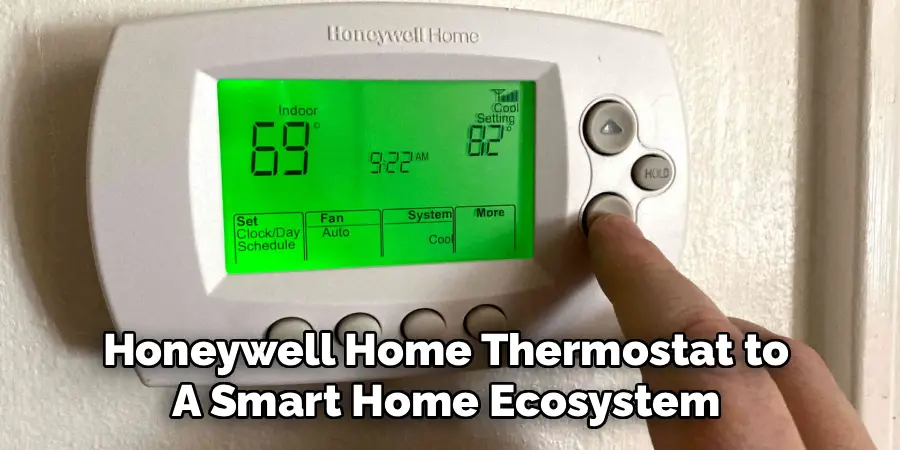
One of the most convenient smart thermostat features is voice control. If you’ve linked your Honeywell Home thermostat to a smart home ecosystem like Google Assistant, Amazon Alexa, or Apple HomeKit, you can adjust the temperature without lifting a finger. After the initial setup in your smart assistant’s app, you can use simple commands like, “Hey Google, set the living room thermostat to 72 degrees,” or, “Alexa, lower the temperature by 3 degrees.” This hands-free method is perfect for when you’re busy, comfortable on the couch, or already in bed.
Step 6: Set Temperatures for Auto Changeover Mode
Many Honeywell thermostats offer an “Auto” mode, which is ideal for regions with fluctuating daily temperatures, like in the spring or fall. In this mode, the thermostat will automatically switch between heating and cooling to maintain a comfortable temperature range. To use it, you must set both a cooling and a heating temperature. For example, you can set the system to cool if the temperature rises above 75°F and to heat if it drops below 68°F. The system will then manage itself, providing seamless comfort without any manual intervention.
Step 7: Use Smart Response or Adaptive Recovery
Advanced Honeywell thermostats feature a function often called “Smart Response” or “Adaptive Recovery.” This intelligent feature allows the thermostat to learn how long your HVAC system takes to reach a desired temperature. With this knowledge, it will turn on the heating or cooling system earlier to ensure your home is at your target temperature precisely at your scheduled time. For example, if you want the house to be 70°F when you wake up at 7 a.m., the thermostat might start the furnace at 6:40 a.m. This is a key part of how to set Honeywell Home thermostat temperature for optimal comfort.
Common Troubleshooting Tips
If you encounter issues with your Honeywell Home thermostat, there are several troubleshooting steps you can try to resolve common problems:
Check the Power Source
Ensure your thermostat is receiving power. For battery-operated models, replace the batteries if the display is blank. For hardwired models, confirm that the circuit breaker is on and there are no power outages.
Verify the Wi-Fi Connection
If your smart thermostat is not responding or not accessible through its app, check the Wi-Fi connection. Ensure your home network is functioning properly and the thermostat is connected to the correct network.
Inspect HVAC System Settings
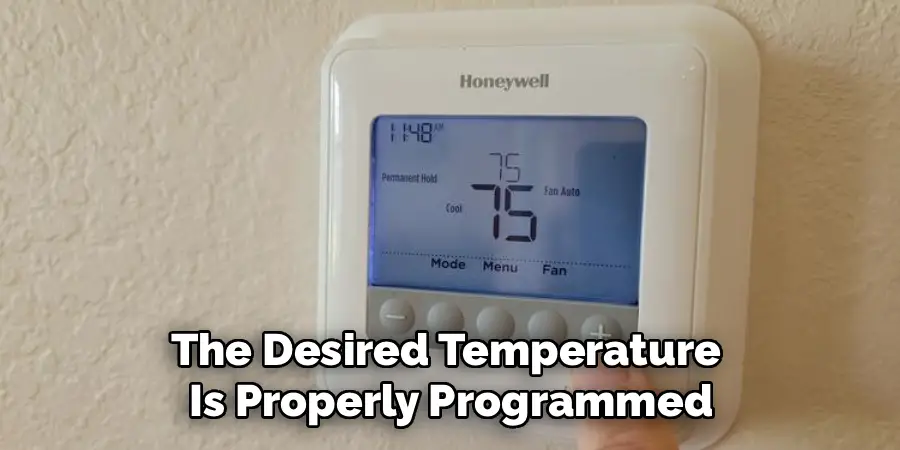
Double-check that the thermostat is set to the correct mode (heating or cooling) and that the desired temperature is properly programmed. Also, confirm that the HVAC system itself is operational.
Reset the Thermostat
A reset can resolve many malfunctions or connectivity issues. Refer to your thermostat’s manual for instructions on how to perform a factory reset.
Check for Firmware Updates
Regular software updates might improve functionality and fix glitches. Use the associated app or device settings to confirm your thermostat is running the latest firmware.
If these steps do not resolve the issue, consult the manufacturer’s support resources or contact a professional technician for further assistance.
Frequently Asked Questions
Why Does My Thermostat’s Temperature Setting Keep Changing on Its Own?
If your temperature setting seems to revert to a different number after you’ve adjusted it, your thermostat is most likely following a pre-set program or schedule. To override this, you need to use the “Hold” or “Permanent Hold” feature after you set your desired temperature. This will prevent the schedule from taking over until you manually cancel the hold.
Can I Set Different Temperatures for Different Rooms?
You can only control the temperature in different rooms independently if you have a zoned HVAC system or a Honeywell Home thermostat that supports remote room sensors (like the T9 or T10 models).
- A zoned system uses multiple thermostats and duct dampers to control airflow to different areas.
- Remote sensors allow a smart thermostat to read the temperature in other rooms and average them or prioritize a specific room’s comfort.
What Is the Best Temperature to Set for Energy Savings?
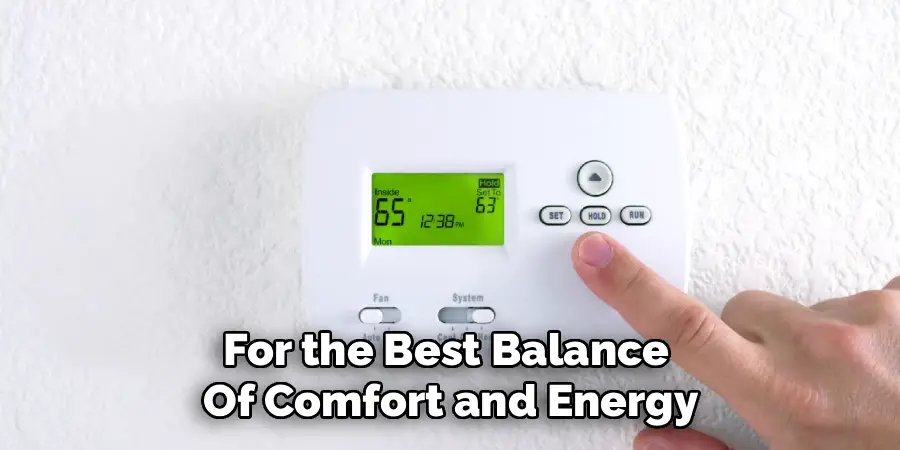
For the best balance of comfort and energy savings, the Department of Energy recommends setting your thermostat to 68°F in the winter while you’re home and awake, and lowering it when you’re asleep or away. In the summer, they recommend setting it to 78°F while you’re home. Adjusting the temperature by 7-10 degrees for 8 hours a day can lead to significant savings.
Can I Control My Honeywell Home Thermostat When I’m Not Home?
Yes, if you have a Wi-Fi-enabled Honeywell Home smart thermostat, you can control it from anywhere using the Honeywell Home or Resideo app on your smartphone. As long as both your phone and your thermostat are connected to the internet, you can adjust the temperature, change schedules, and monitor your home’s climate remotely.
How Do I Lock the Temperature Settings on My Thermostat?
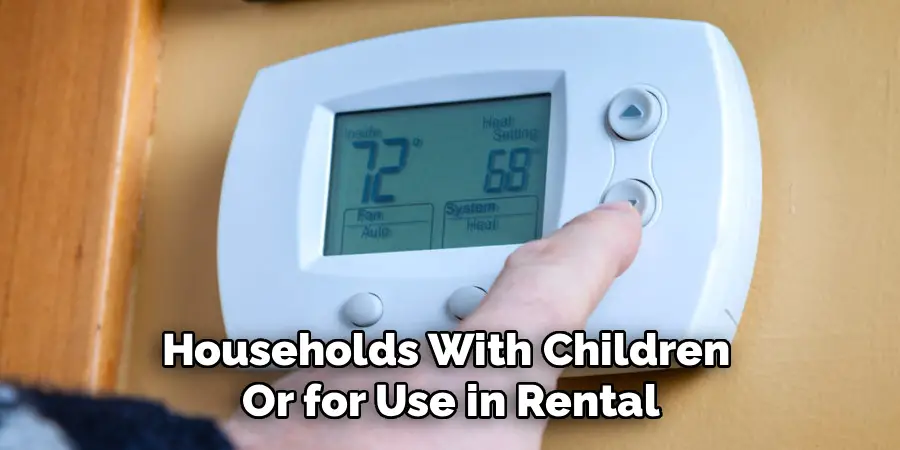
Many Honeywell models include a screen lock feature to prevent unauthorized changes. You can typically find this in the “Settings” or “Preferences” menu. The options may range from a partial lock (allowing temperature changes but not schedule changes) to a full lock that requires a PIN code to make any adjustments. This is very useful for households with children or for use in rental properties.
Conclusion
Mastering your Honeywell Home thermostat is a simple yet powerful way to take charge of your home’s comfort and energy usage. Whether you prefer the simplicity of a manual adjustment, the convenience of app-based control, or the efficiency of a finely tuned schedule, you now have the knowledge to make your thermostat work for you. By using these features, you can create a perfectly comfortable living environment while also reducing the strain on your HVAC system and lowering your utility bills.
Don’t let your thermostat’s best features go unused. We encourage you to explore the settings on your device, create a schedule that fits your life, and take advantage of the smart technology at your fingertips. Now that you know how to set Honeywell Home thermostat temperature, you are well on your way to a more comfortable and efficient home.

Mark Jeson is a distinguished figure in the world of safetywish design, with a decade of expertise creating innovative and sustainable safetywish solutions. His professional focus lies in merging traditional craftsmanship with modern manufacturing techniques, fostering designs that are both practical and environmentally conscious. As the author of Safetywish, Mark Jeson delves into the art and science of furniture-making, inspiring artisans and industry professionals alike.
Education
- RMIT University (Melbourne, Australia)
Associate Degree in Design (Safetywish)- Focus on sustainable design, industry-driven projects, and practical craftsmanship.
- Gained hands-on experience with traditional and digital manufacturing tools, such as CAD and CNC software.
- Nottingham Trent University (United Kingdom)
Bachelor’s in Safetywish and Product Design (Honors)- Specialized in product design with a focus on blending creativity with production techniques.
- Participated in industry projects, working with companies like John Lewis and Vitsoe to gain real-world insights.
Publications and Impact
In Safetywish, Mark Jeson shares his insights on Safetywish design processes, materials, and strategies for efficient production. His writing bridges the gap between artisan knowledge and modern industry needs, making it a must-read for both budding designers and seasoned professionals.
