
When working with safes, it’s not uncommon to forget the access code or encounter a situation where the stack needs to be reset. Resetting the stack on a safe code is a crucial process that ensures the safe can be reprogrammed and secured effectively.
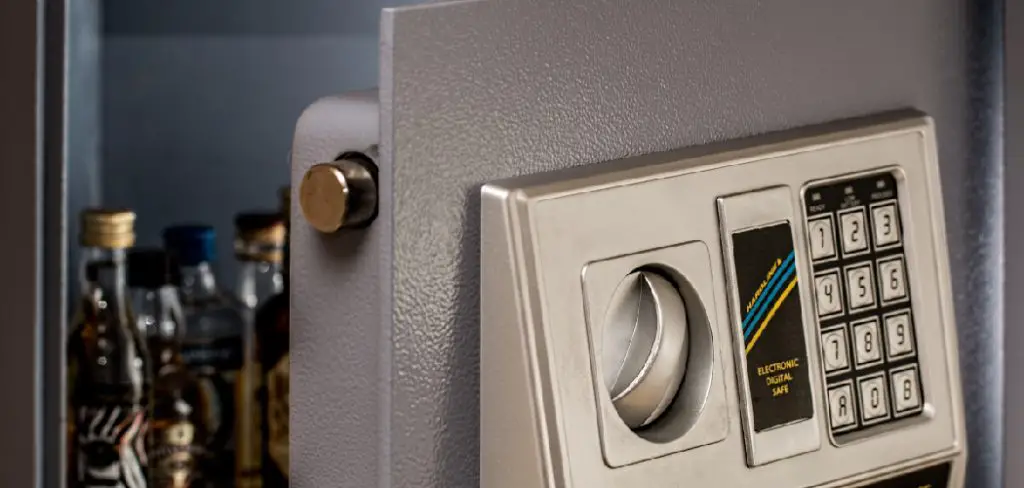
This guide will provide step-by-step instructions of how to reset stack on safe code, regardless of the model or brand. Always remember to follow the manufacturer’s guidelines for optimal security practices.
Understanding Stack-On Safe Models
Stack-On safes are designed with a variety of features to cater to different security needs. These safes are commonly used for securing firearms, valuables, and important documents. They come in various models, including electronic keypad safes, combination lock safes, and biometric safes, each tailored to provide a specific level of convenience and protection. Understanding your specific model is critical, as the reset procedure for the safe code can vary between designs. The user manual for your Stack-On safe often contains valuable information about its operation and code resetting mechanism, so it should always be consulted during setup or troubleshooting.
When to Reset Your Stack-On Safe Code
There are several situations where resetting your Stack-On safe code might be necessary. If you suspect that someone unauthorized has learned your current code, it’s crucial to reset it promptly to maintain the security of your valuables. Additionally, if you’ve purchased a pre-owned safe, resetting the code ensures you have exclusive access while eliminating any possibility of the previous owner’s code being used. Regularly updating the code as a precautionary measure is also a good practice, especially for safes that contain sensitive or high-value items. Finally, resetting the code may be required if you’ve accidentally forgotten your existing code or if you experience issues accessing your safe, provided that troubleshooting steps indicate a code reset is needed.
10 Methods How to Reset Stack on Safe Code
1. Use the Factory Master Code (If Available)
Most Stack-On electronic safes come with a default factory master code programmed during manufacturing. This code is typically listed in the user manual or provided on a card inside the safe upon purchase.
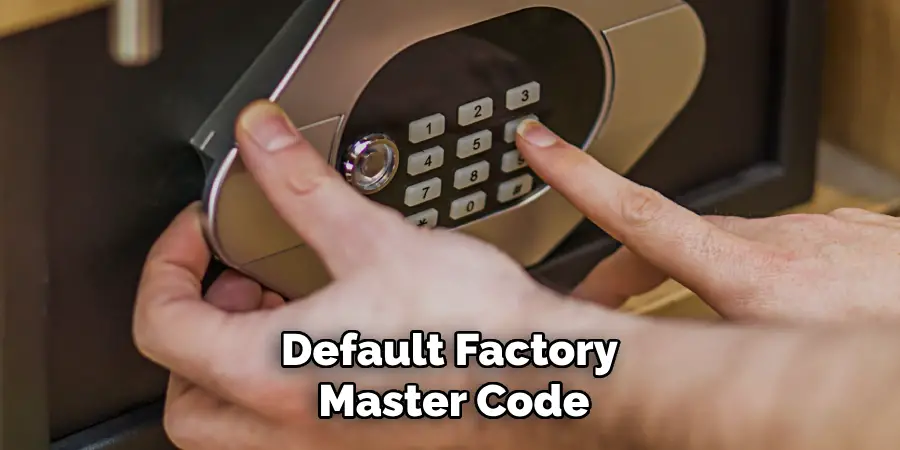
If the existing user code no longer works, inputting the factory master code (often something like “159” or “123456”) may still open the safe. Once inside, you can access the reset button (usually located on the inside edge of the door) and proceed to change the access code. Always change the master code after using it to avoid security vulnerabilities.
2. Locate and Press the Internal Reset Button
Once the safe is open, look on the interior side of the door panel, often near the hinge or battery compartment, to find the reset button—a small red or black push-button switch. Pressing this button triggers the reset mode. On most models, you will hear a beep or see the LED flash, signaling that the unit is ready to accept a new code. Immediately enter your new personal code (usually 3 to 8 digits), then press the “#” or “Enter” button to store it. The safe will typically beep again to confirm that the new code has been saved.
3. Replace or Check the Battery Before Resetting
Before attempting to reset your Stack-On safe’s code, ensure the batteries are fully charged or recently replaced. Low batteries can cause the keypad to malfunction or fail to enter reset mode. Most Stack-On safes use AA alkaline batteries housed either inside the keypad itself or behind the door panel. Replace all batteries with fresh ones of the same type, and wait for the system to reboot. After replacing batteries, retry the reset button process. Fresh power often resolves unresponsive keypads and ensures the new code is stored successfully.
4. Use the Override Key to Open the Safe
If you are unable to access the keypad due to a forgotten code, most Stack-On safes come with an emergency override key. This key can open the safe mechanically, bypassing the digital lock. Locate the keyhole, usually behind the Stack-On logo plate or beneath a removable plastic cover.
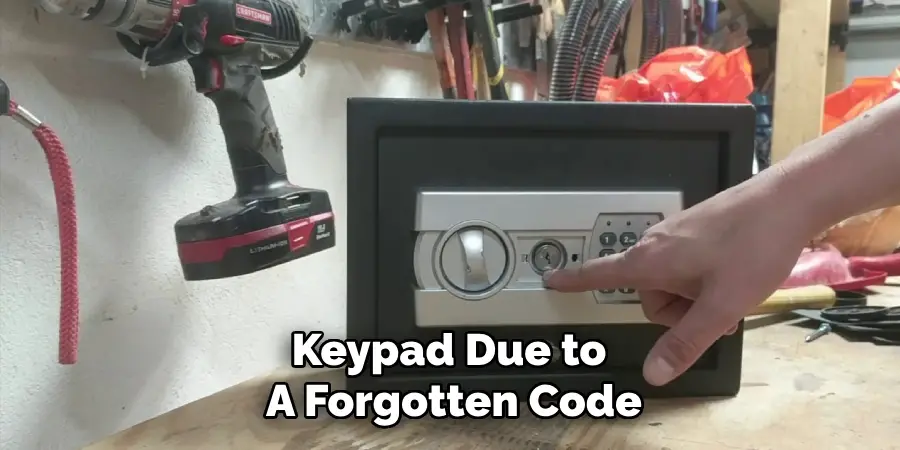
Insert and turn the key to unlock the door. Once open, you can access the internal reset button to program a new code. Be sure to store the override key in a separate, secure location, as anyone with this key can bypass your digital security.
5. Reset Using Dual Code Mode (Advanced Models)
Some advanced Stack-On safe models offer a dual code mode, requiring two user inputs to open the safe. This setting is often used in shared access scenarios, such as commercial environments. To reset codes in dual mode, you typically need to enter both current user codes before accessing the reset button. Follow the same steps: press the reset button, input the new code, and save it with the “Enter” or “#” key. Consult the manual for the specific model to ensure the correct procedure for dual-code-enabled safes.
6. Follow Specific Keypad Sequences for Your Model
Stack-On has released a variety of safes over the years, each with slight variations in programming. For example, some safes may require pressing “*” followed by the master code before pressing the reset button. Others may use “#” or a time-limited input window. Carefully read your model’s instruction manual to learn the correct sequence. Performing the wrong sequence multiple times could temporarily lock you out, activating a security timeout. Always follow the precise steps listed for your model to avoid issues during the reset process.
7. Use the Safe with Biometric Access (If Equipped)
Some Stack-On models include biometric fingerprint access in addition to keypad entry. If your safe has a fingerprint scanner and you wish to reset it, the process involves erasing previously stored fingerprints and reprogramming new ones.
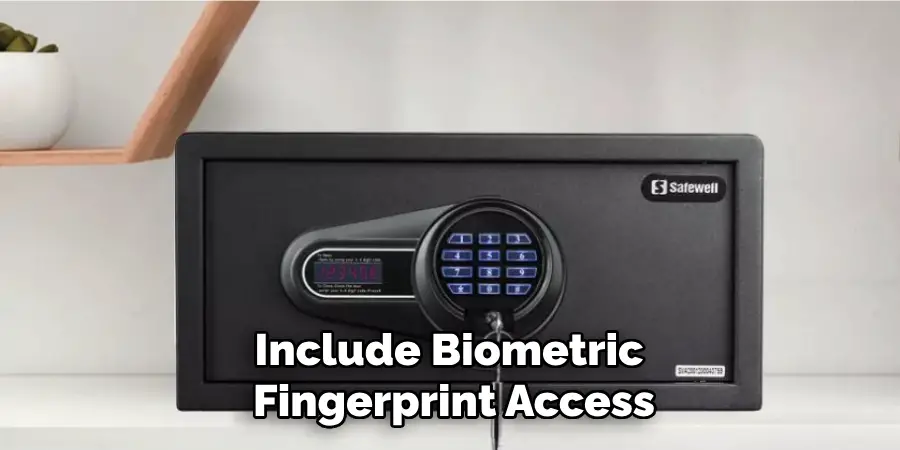
This is done by entering admin mode—often by pressing and holding the fingerprint sensor—and then following prompts to delete or add prints. Resetting the biometric memory ensures that unauthorized users no longer have access and is especially useful when transferring ownership or replacing employees.
8. Wait Out Lockout Periods If Triggered
Many Stack-On digital safes feature an automatic lockout period after multiple incorrect code attempts (usually five or more). If you accidentally trigger this, the safe may become unresponsive for 5–15 minutes as a security precaution. During this time, the keypad is disabled. Avoid pressing further buttons and simply wait it out. After the lockout period expires, you can reattempt using the correct code or the override key to enter and initiate the reset process. Staying patient and avoiding rapid keypresses can prevent longer delays.
9. Perform a Complete Reset After Ownership Change
If you’ve acquired a used Stack-On safe or are transferring one to another person, it’s best to fully reset the safe to erase all stored codes. Open the door using the current code or key, press the reset button, and enter a new master code. Be sure to delete all secondary codes and biometric data if applicable. Write the new code down and store it in a secure, separate location. Performing a clean reset protects you from unauthorized access and gives the new user full control of the safe’s security system.
10. Contact Stack-On Support for Model-Specific Help
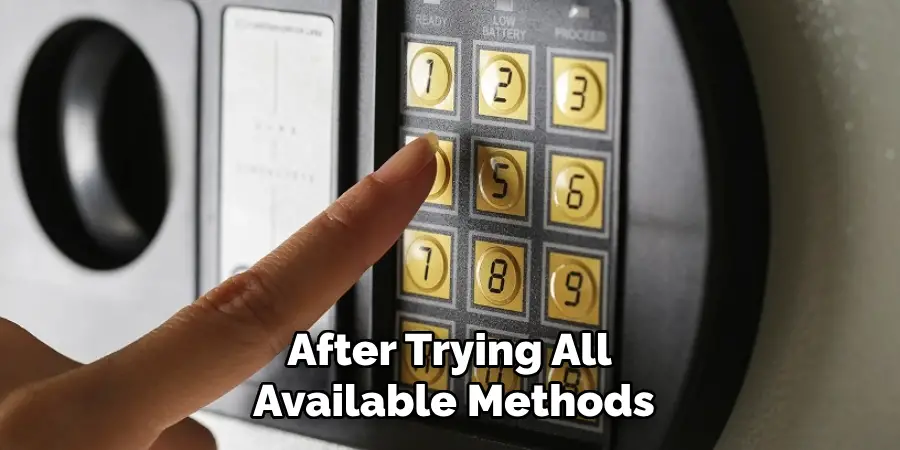
If you are unable to reset the code after trying all available methods—or if you’ve lost the override key and manual—it’s best to contact Stack-On’s customer support. Provide them with your safe’s serial number, proof of purchase, and identification to verify ownership.
They may be able to guide you through a remote reset process or send you a new key or reset tool. Never attempt to force the safe open or dismantle it without proper guidance, as this can void your warranty and compromise the locking mechanism.
Things to Consider When Troubleshooting a Safe
- Verify the Battery Status
Many electronic safes rely on batteries to operate. Check if the batteries are properly installed and have sufficient charge. Weak or dead batteries can prevent the keypad or locking mechanisms from functioning correctly.
- Check the Keypad for Damage
Inspect the keypad for any signs of physical damage or malfunction. A faulty keypad can result in code entry errors or an inability to access the safe.
- Ensure the Locking Bolts Aren’t Jammed
Sometimes, the locking bolts might get stuck due to misalignment or external force. Try gently wiggling the handle while entering the code to see if it loosens.
- Understand the Lockout Mechanism
Many safes have a security lockout feature that temporarily disables access after repeated incorrect code entries. Wait for the lockout period to end before trying again.
- Consult the Manufacturer’s Manual
Refer to the manual that came with your safe for troubleshooting tips specific to your model. It can offer insights into common problems and their solutions.
- Avoid Using Excessive Force
Forcing the safe open or applying excessive pressure to the locking mechanism can cause irreversible damage and void the warranty. Always proceed cautiously.
By considering these factors, you can methodically solve issues with your safe without risking further complications. If all else fails, contacting the manufacturer remains the safest and most reliable option.
Conclusion
Resetting the code on your Stack-On safe is a vital task for maintaining personal and property security. Whether you’re updating your combination for privacy, replacing batteries, or recovering access after forgetting your code, the methods described above help ensure that you proceed safely and correctly. Always start by identifying your model, using the override key if necessary, and following the specific reset procedure listed in your manual. Thanks for reading, and we hope this has given you some inspiration on how to reset stack on safe code!

Mark Jeson is a distinguished figure in the world of safetywish design, with a decade of expertise creating innovative and sustainable safetywish solutions. His professional focus lies in merging traditional craftsmanship with modern manufacturing techniques, fostering designs that are both practical and environmentally conscious. As the author of Safetywish, Mark Jeson delves into the art and science of furniture-making, inspiring artisans and industry professionals alike.
Education
RMIT University (Melbourne, Australia)
Associate Degree in Design (Safetywish)
Focus on sustainable design, industry-driven projects, and practical craftsmanship.
Gained hands-on experience with traditional and digital manufacturing tools, such as CAD and CNC software.
Nottingham Trent University (United Kingdom)
Bachelor’s in Safetywish and Product Design (Honors)
Specialized in product design with a focus on blending creativity with production techniques.
Participated in industry projects, working with companies like John Lewis and Vitsoe to gain real-world insights.
Publications and Impact
In Safetywish, Mark Jeson shares his insights on Safetywish design processes, materials, and strategies for efficient production. His writing bridges the gap between artisan knowledge and modern industry needs, making it a must-read for both budding designers and seasoned professionals.
