
Your Honeywell Home thermostat is the key to managing your home’s climate, but are you using it to its full potential?
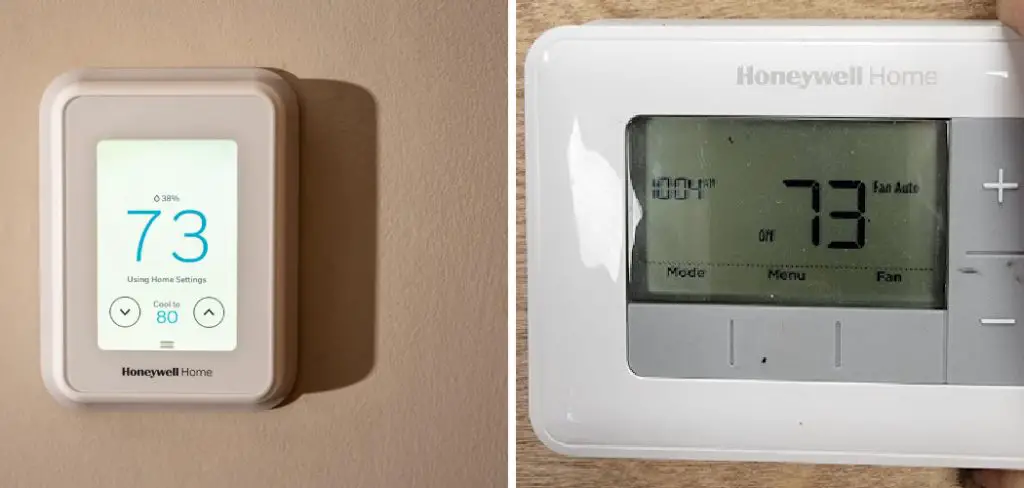
These devices offer a range of features, from simple manual adjustments to complex, energy-saving schedules and smart home integrations. Simply setting the temperature and forgetting it means you could be missing out on significant energy savings and enhanced comfort. Understanding the full capabilities of your device is the first step toward a smarter, more efficient home.
This guide will demystify the functions of your device and empower you with the knowledge to take full control. We will show you how to use Honeywell Home thermostat, covering everything from basic operations to advanced features, so you can tailor your home’s climate perfectly to your lifestyle.
Why Use a Honeywell Home Thermostat?
Using a Honeywell Home thermostat effectively goes far beyond just turning the heat up or down; it’s about creating a smarter, more comfortable, and energy-efficient home. One of the greatest benefits is the potential for significant energy savings. By creating programmable schedules, you can automatically lower the temperature when you’re away or asleep, ensuring you’re not paying to heat or cool an empty house. Many models also feature energy-saving modes that further optimize your HVAC system’s performance.
For Wi-Fi enabled models, the convenience of remote control is a game-changer. With the Honeywell Home app, you can adjust your home’s temperature from anywhere, whether you’re on your way home from work or on vacation. This connectivity also allows for integration with voice assistants like Alexa and Google Assistant, offering hands-free temperature control. These smart thermostat features work together to provide customized comfort that adapts to your life.
7 Step-by-Step Guide: How to Use Honeywell Home Thermostat
Step 1: Adjust the Temperature Manually
The most fundamental function of any thermostat is manual temperature control. On most Honeywell models, this is incredibly intuitive. You can simply press the up and down arrows or, on touchscreen models, tap the temperature display to adjust it.
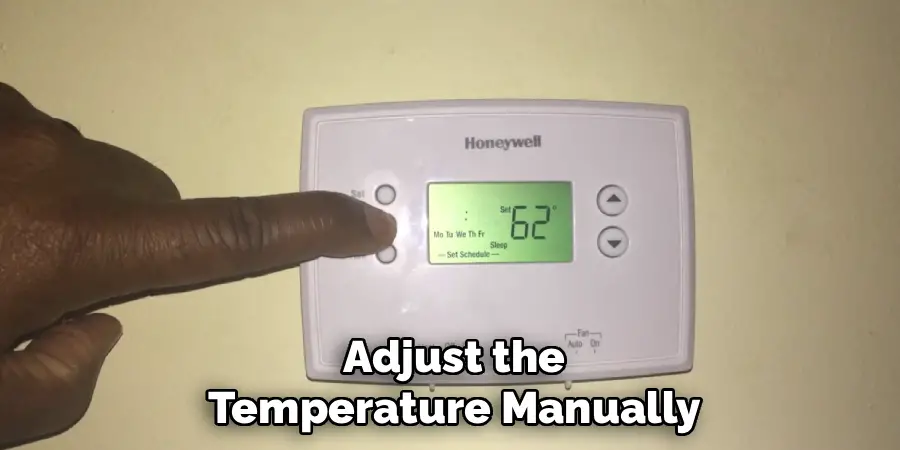
When you change the temperature manually, it will typically create a temporary hold, overriding your programmed schedule until the next scheduled change. This is perfect for those times when you feel a bit chilly or too warm and need immediate comfort without altering your entire daily program. It’s the simplest way to interact with your device.
Step 2: Set a Heating and Cooling Schedule
The core of using your thermostat efficiently is setting up programmable schedules. This feature allows you to automate your home’s temperature throughout the day and week. Access the “Schedule” or “Program” menu on your device or in the app. Here, you can set different temperatures for various time blocks, such as when you wake up, leave for work, return home, and go to sleep.
A properly configured schedule ensures your home is comfortable when you’re there and saving energy when you’re not, which is a cornerstone of effective energy management.
Step 3: Switch Between System Modes
Your Honeywell thermostat allows you to control your entire HVAC system by switching between different modes. You can typically find a “Mode” button or menu option on the device. The primary modes are “Heat,” “Cool,” and “Off.” Some models also offer an “Auto” mode, which is particularly useful during spring and fall.
In Auto mode, the thermostat will automatically switch between heating and cooling as needed to maintain your desired temperature range, providing seamless comfort as outside weather fluctuates. Understanding how to switch modes is essential for year-round temperature control.
Step 4: Use the Honeywell Home App
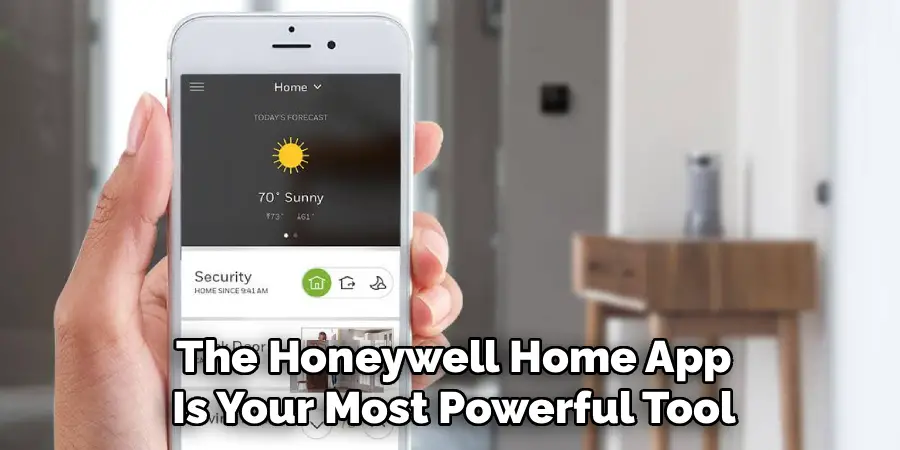
If you have a Wi-Fi thermostat, the Honeywell Home app is your most powerful tool. Download it from the Apple App Store or Google Play Store and connect your thermostat to your account. The app unlocks a host of smart thermostat features, including full remote control.
You can adjust the temperature, change your schedule, and monitor your home’s climate from anywhere. The app also provides usage reports and sends important alerts, such as extreme temperature warnings or filter change reminders, putting complete control of your home’s comfort in the palm of your hand.
Step 5: Activate Energy-Saving Modes
Many Honeywell thermostats come with specific energy-saving modes designed to reduce your utility bills without sacrificing comfort. These modes are often called “Eco Mode,” “Energy Saver,” or may be part of the adaptive recovery feature. When activated, the thermostat will adjust the temperature to a more economical setting.
On smart models, Eco Mode can be triggered automatically when the system detects that no one is home. Using these features is a simple, set-it-and-forget-it way to ensure your HVAC system is running as efficiently as possible, making it a crucial part of how to use Honeywell Home thermostat effectively.
Step 6: Explore the Fan Settings
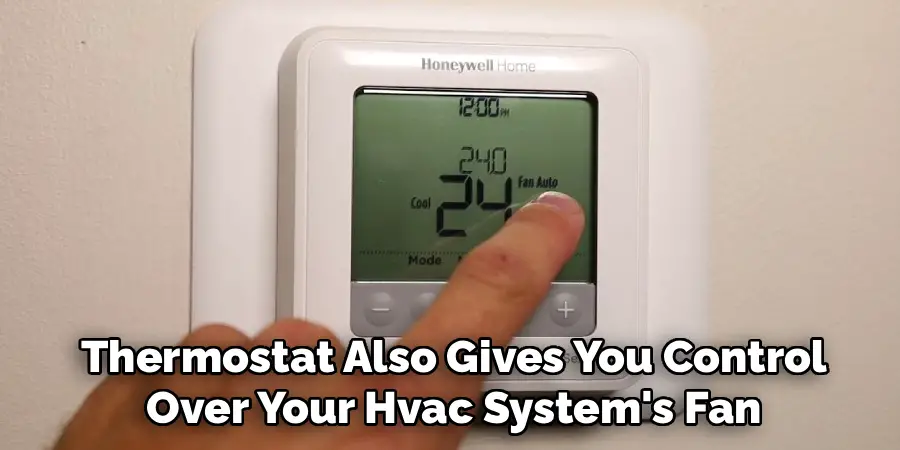
Your thermostat also gives you control over your HVAC system’s fan. In the settings, you will typically find two options: “Auto” and “On.” The “Auto” setting is the most common and energy-efficient choice; it runs the fan only when the heating or cooling cycle is active.
The “On” setting runs the fan continuously, circulating air throughout your home even when the HVAC system isn’t actively heating or cooling. This can be useful for improving air circulation and helping to even out temperatures between different rooms, though it will use more electricity.
Step 7: Lock the Thermostat Screen
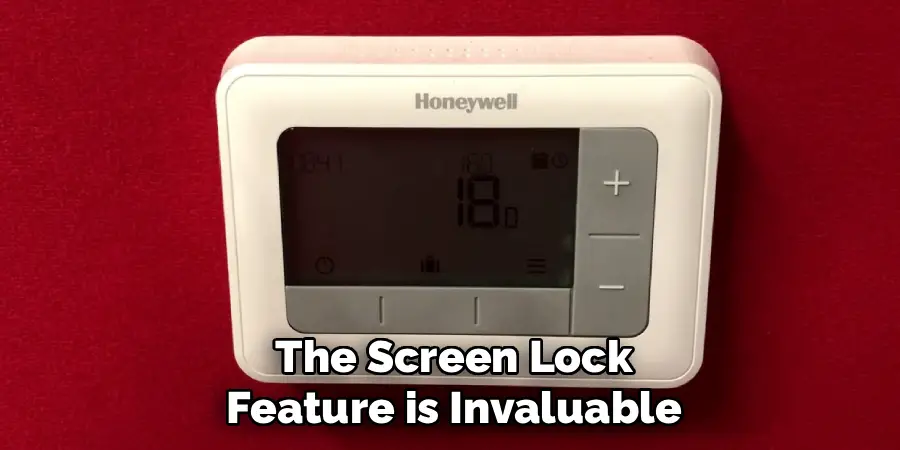
If you have kids who love to press buttons or live in a shared space, the screen lock feature is invaluable. This function prevents unauthorized changes to your temperature settings. In your thermostat’s menu, look for a “Lock,” “Screen Lock,” or “Security” option. You can typically set a partial lock, which only prevents changes to the schedule, or a full lock, which requires a PIN code to make any adjustments at all. This ensures your carefully planned schedules and temperature settings remain exactly as you set them.
Troubleshooting Common Issues
Even with a reliable thermostat, occasional issues may arise that require troubleshooting. Here are some common problems and their potential solutions:
Thermostat Not Responding
If your thermostat appears unresponsive, first check the batteries and replace them if necessary. For hardwired units, ensure that the thermostat is receiving power and verify the circuit breaker has not tripped.
Incorrect Temperature Readings
If the thermostat displays an inaccurate temperature, ensure it is placed away from sources of heat, drafts, or direct sunlight that may affect its readings. Cleaning the thermostat gently to remove dust buildup can also improve accuracy.
System Fails to Heat or Cool
Verify that the thermostat is set to the correct mode (heating or cooling) and that the temperature setting is appropriate. Additionally, inspect the HVAC system to confirm the filters are clean and no blockages exist in vents or ductwork.
Wi-Fi Connection Problems
For smart thermostats, connectivity issues can usually be resolved by restarting your Wi-Fi router and ensuring the thermostat is within range of the signal. Verify that the thermostat’s software is up-to-date for optimal performance.
By addressing these common issues methodically, you can often restore your thermostat to full functionality without the need for professional assistance.
Frequently Asked Questions
Can I Use My Honeywell Home Thermostat Without Wi-Fi?
Yes. While Wi-Fi enables smart features like remote control via the app and voice commands, all Honeywell thermostats can function without it. Programmable models will still follow the schedules you set directly on the device, and all models allow for manual temperature adjustments. You will simply miss out on the advanced connectivity features that make a smart thermostat “smart.”
How Do I Know Which Honeywell Home Thermostat Model I Have?
Knowing your model number is important for finding specific instructions. To find it, you’ll usually need to carefully pull the thermostat’s faceplate off its wall-mounted base. The model number is typically printed on a sticker on the back of the unit. It will likely start with letters such as “RTH,” “TH,” or “T.” Once you have this number, you can easily find the correct user manual online.
What Is the Difference Between the “Auto” and “On” Fan Settings?
These two settings control how your HVAC system’s fan operates.
- Auto: This is the standard, energy-efficient setting. The fan only runs when your system is actively heating or cooling.
- On: This setting runs the fan continuously, 24/7, regardless of whether the heat or AC is on. This improves air circulation but uses more electricity. It can be useful for filtering air constantly if you have a high-quality filter.
Does My Honeywell Home Thermostat Learn My Habits?
It depends on the model. Standard programmable thermostats do not learn; they simply follow the schedule you manually input. However, some advanced Honeywell Home smart thermostats, like the T9 or T10, have adaptive intelligent recovery features. They learn how long it takes to heat or cool your home and will turn the system on earlier to ensure your desired temperature is reached precisely at your scheduled time.
Can I Control Multiple Thermostats From One App?
Yes, the Honeywell Home app is designed to manage multiple devices across different locations. If you have separate thermostats for different zones in your house (e.g., upstairs and downstairs) or even thermostats in different properties (like a vacation home), you can add them all to the same account. The app allows you to easily switch between devices to monitor and control each one independently.
Conclusion
Mastering your Honeywell Home thermostat is a straightforward way to enhance your daily comfort and take control of your energy consumption. By moving beyond simple manual adjustments and utilizing programmable schedules, energy-saving modes, and the powerful Honeywell Home app, you transform a simple device into the smart hub of your home’s climate. Taking the time to explore these features pays off in both comfort and savings.
Now that you have a deeper understanding of how to use Honeywell Home thermostat, we encourage you to explore your device’s settings. Customize a schedule that fits your life, activate the smart features, and enjoy a perfectly comfortable and efficient home.

Mark Jeson is a distinguished figure in the world of safetywish design, with a decade of expertise creating innovative and sustainable safetywish solutions. His professional focus lies in merging traditional craftsmanship with modern manufacturing techniques, fostering designs that are both practical and environmentally conscious. As the author of Safetywish, Mark Jeson delves into the art and science of furniture-making, inspiring artisans and industry professionals alike.
Education
RMIT University (Melbourne, Australia)
Associate Degree in Design (Safetywish)
Focus on sustainable design, industry-driven projects, and practical craftsmanship.
Gained hands-on experience with traditional and digital manufacturing tools, such as CAD and CNC software.
Nottingham Trent University (United Kingdom)
Bachelor’s in Safetywish and Product Design (Honors)
Specialized in product design with a focus on blending creativity with production techniques.
Participated in industry projects, working with companies like John Lewis and Vitsoe to gain real-world insights.
Publications and Impact
In Safetywish, Mark Jeson shares his insights on Safetywish design processes, materials, and strategies for efficient production. His writing bridges the gap between artisan knowledge and modern industry needs, making it a must-read for both budding designers and seasoned professionals.
