
Are you tired of having to physically check who’s at the door every time it rings? With Eufy doorbell and Alexa integration, you can easily see and talk to visitors through your Alexa device.
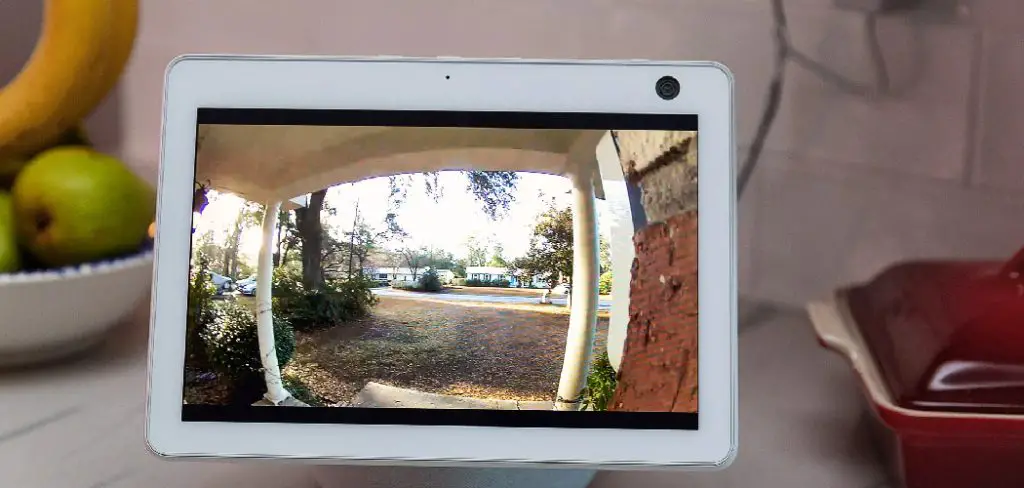
Connecting your Eufy doorbell to Alexa allows you to enhance your smart home experience by integrating the two devices seamlessly. With this integration, you can use voice commands to interact with your doorbell, view live feeds on Echo Show devices, and receive notifications directly through Alexa. Whether you’re checking who’s at the door or managing your home security effortlessly, linking your Eufy doorbell to Alexa is a straightforward process that brings convenience and peace of mind to your daily life.
This guide on how to connect Eufy doorbell to Alexa will walk you through the steps to successfully set up and connect your Eufy doorbell to Alexa.
What Are the Benefits of Connecting an Eufy Doorbell to Alexa?
- Hands-free Convenience: By connecting your Eufy doorbell to Alexa, you can control and access your doorbell’s features hands-free using voice commands. This is especially useful when you have your hands full or are unable to physically reach your phone or doorbell.
- View Live Feeds on Echo Show Devices: With the integration of Eufy doorbell and Alexa, you can easily view live video feeds from your doorbell directly on compatible Echo Show devices such as the Echo Show 5, Echo Show 8, and Echo Show 10. This allows you to keep an eye on your doorstep without having to open the app on your phone.
- Receive Notifications and Alerts: Set up customized notifications and alerts on your Alexa device to receive instant updates when motion is detected or when someone rings the doorbell. This ensures that you never miss any important activity happening at your doorstep.
- Answer the Door from Anywhere: Whether you’re in another room, at work, or even out of town, you can easily answer the door using your Alexa device. Simply use voice commands to communicate with visitors through the two-way audio feature on the Eufy doorbell.
What Will You Need?
To fully utilize the Eufy doorbell and its integration with Alexa, you will need the following:
- An Alexa-enabled device (such as an Amazon Echo or Echo Dot)
- A stable internet connection
- The EufyHome app is installed on your smartphone
- The Eufy doorbell is installed at your front door
Once you have all of these components in place, you can begin the setup process and start using your Eufy doorbell with Alexa.
10 Easy Steps on How to Connect Eufy Doorbell to Alexa
1. Open the Alexa App and Enable the Eufy Security Skill
To begin linking your Eufy doorbell with Alexa, open the Alexa app on your smartphone or tablet. Navigate to the “More” section in the bottom-right corner of the app, then select “Skills & Games.” Use the search bar to look for the “Eufy Security” skill. Once located, tap on the skill and press “Enable to Use.”
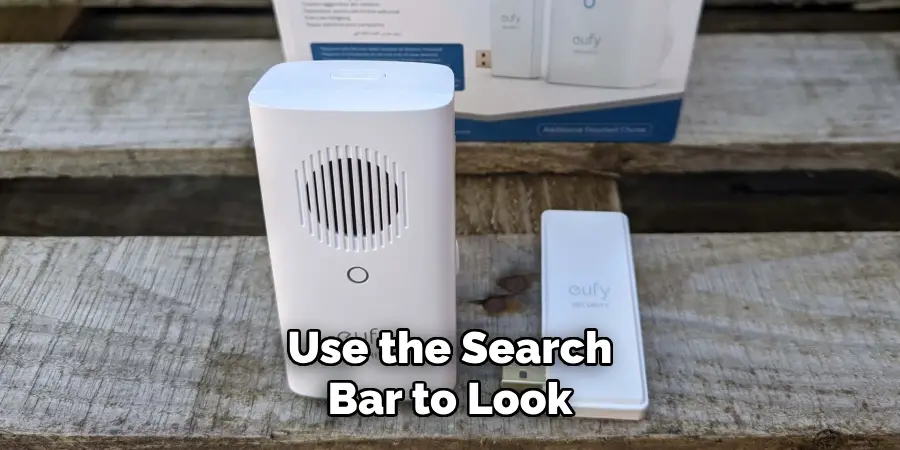
This step will prompt you to log in with your Eufy account credentials. Make sure to use the same login details that you used when setting up your Eufy doorbell in the EufyHome app. After logging in, Alexa will securely link the two accounts, giving the smart assistant access to your Eufy doorbell.
2. Open the EufyHome App
Open the EufyHome app on your smartphone and ensure that your Eufy doorbell is already set up and functioning correctly. If your doorbell has not been set up yet, follow the instructions provided in the EufyHome app to complete the installation and pairing process. Make sure your doorbell is connected to the same Wi-Fi network as your Alexa-enabled device to ensure a seamless integration.
3. Set Up Your Eufy Doorbell in the App
Once your Eufy doorbell is installed and paired, it’s time to configure its settings to optimize its functionality within the EufyHome app. Open the app and locate your doorbell in the list of connected devices. From here, you can customize features such as motion detection sensitivity, notification preferences, and video recording options.
Additionally, ensure that the live view and two-way audio features are activated for seamless communication and monitoring. It’s also recommended to check for firmware updates within the app to make sure your doorbell is operating with the latest improvements and features. Taking time to configure these settings will help you get the most out of your Eufy doorbell before integrating it with Alexa.
4. Open the Alexa App
Launch the Alexa app on your smartphone or tablet. If you haven’t already, sign in with your Amazon account credentials. Once you’re logged in, ensure that your Alexa app is updated to the latest version for optimal performance. Navigate to the “Devices” tab located at the bottom of the screen and tap on the “+” icon in the top-right corner to begin adding your Eufy doorbell to Alexa.
This will guide you through the setup process to link the devices seamlessly.
5. Enable the Eufy Security Skill
To enable the Eufy Security Skill, return to the Alexa app’s home screen and tap on the menu icon, typically represented by three lines in the upper-left corner. Select “Skills & Games” from the menu and use the search bar to find the “Eufy Security” Skill. Once located, tap on it and then select “Enable to Use.”

You will be prompted to sign in with your Eufy account credentials to authorize the connection. Follow the on-screen instructions to complete the process. Once the Skill is enabled, Alexa will be able to communicate with your Eufy doorbell, unlocking voice control capabilities.
6. Authorize Your Eufy Account
After enabling the Eufy Security Skill, you will be redirected to a login page where you need to enter your Eufy account credentials. This step is crucial for linking your Eufy devices to Amazon Alexa securely.
Ensure that you use the same account details connected to your doorbell. Once logged in, follow any additional prompts to grant permissions and confirm the connection. When the authorization is successful, you will see a confirmation message, and your Eufy devices will be ready for Alexa integration.
7. Discover Devices
To enable Alexa to recognize your Eufy devices, you need to perform a device discovery. Open the Alexa app and go to the “Devices” section. Select the “+” icon or tap on “Add Device” and follow the prompts to begin the discovery process. Alexa will scan your network for supported devices, including your Eufy doorbell and other connected Eufy devices.
This step may take a few moments. Once the process is complete, your Eufy devices will appear in the Alexa app, ready to be controlled through voice commands or via the app interface. If your devices are not discovered on the first try, ensure they are powered on and connected to the same Wi-Fi network as your Alexa-enabled device.
8. Assign the Doorbell to a Group
To better organize your smart home and streamline control, you can assign your Eufy doorbell to a group within the Alexa app. For example, you may want to group it with other devices located at your front door or in a specific area of your home. To do this, open the Alexa app and navigate to the “Devices” tab. Select the “Groups” option and either create a new group or choose an existing one.
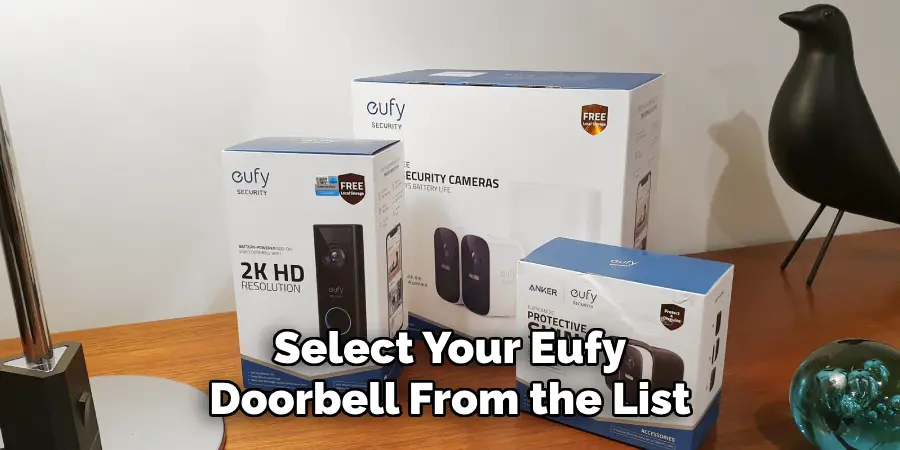
Tap “Add Devices” and select your Eufy doorbell from the list of available devices. Once added, your doorbell will be part of the designated group, allowing you to manage it alongside other devices in that group using simple voice commands or the app interface.
9. Test the Connection
Once your Eufy doorbell is added to a group or set up in the Alexa app, it’s important to test the connection to ensure everything is working properly. Start by using a voice command with your Alexa-enabled device, such as, “Alexa, show me the front door,” to verify that the video feed from your doorbell is displayed on a compatible screen device.
Additionally, press the doorbell button to confirm that Alexa announces the chime as expected. If any issues arise, double-check your Wi-Fi connectivity and ensure the Eufy doorbell is linked correctly in the Alexa app. Troubleshooting any small errors now will ensure a seamless experience moving forward.
10. Customize Notifications
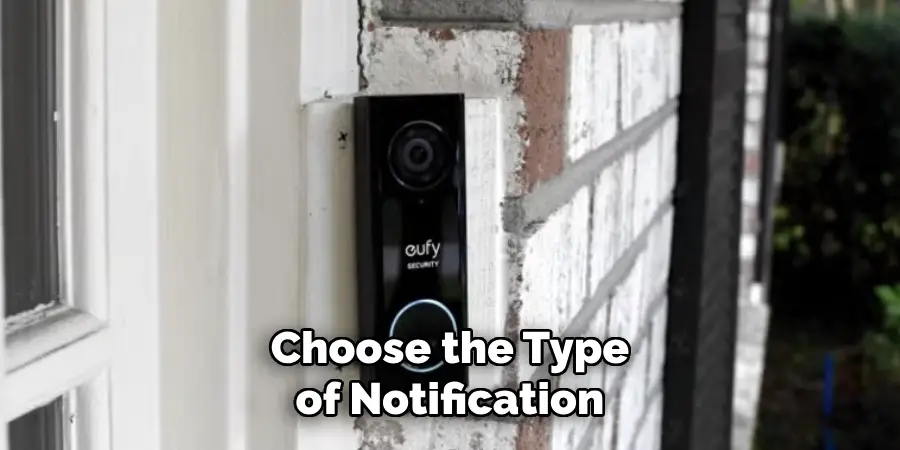
To tailor the notification settings to your preferences, open the Alexa app and navigate to the settings menu for your Eufy doorbell device. Here, you can enable or disable specific alerts, such as motion detection notifications or doorbell rings. Customize the sensitivity of motion detection to avoid unnecessary alerts from passing vehicles or small animals.
Additionally, you can choose the type of notification sound and whether to receive them on your smartphone, Alexa-enabled devices, or both. Personalizing these settings ensures that your alerts are useful and suit your lifestyle.
Your Eufy doorbell is now successfully connected to Alexa, enhancing your smart home experience!
Conclusion
How to connect Eufy doorbell to Alexa is a straightforward process that enhances the convenience and functionality of your smart home.
By following the setup steps, including enabling the Eufy Security skill in the Alexa app, configuring the device settings, and customizing notifications, you can seamlessly integrate the doorbell with Alexa. This integration allows you to control your doorbell using voice commands and receive real-time alerts on compatible devices, ensuring you stay informed and secure.
With this connection, your Eufy doorbell becomes an even more powerful tool in managing your home’s security.

Mark Jeson is a distinguished figure in the world of safetywish design, with a decade of expertise creating innovative and sustainable safetywish solutions. His professional focus lies in merging traditional craftsmanship with modern manufacturing techniques, fostering designs that are both practical and environmentally conscious. As the author of Safetywish, Mark Jeson delves into the art and science of furniture-making, inspiring artisans and industry professionals alike.
Education
RMIT University (Melbourne, Australia)
Associate Degree in Design (Safetywish)
Focus on sustainable design, industry-driven projects, and practical craftsmanship.
Gained hands-on experience with traditional and digital manufacturing tools, such as CAD and CNC software.
Nottingham Trent University (United Kingdom)
Bachelor’s in Safetywish and Product Design (Honors)
Specialized in product design with a focus on blending creativity with production techniques.
Participated in industry projects, working with companies like John Lewis and Vitsoe to gain real-world insights.
Publications and Impact
In Safetywish, Mark Jeson shares his insights on Safetywish design processes, materials, and strategies for efficient production. His writing bridges the gap between artisan knowledge and modern industry needs, making it a must-read for both budding designers and seasoned professionals.
