
Arlo doorbells are innovative smart home devices that provide excellent security and convenience for modern homeowners. However, there are times when you might need to temporarily or permanently disable your device. Whether you’re going on vacation, experiencing technical issues, or simply want some peace and quiet, knowing the proper shutdown procedures is essential for every Arlo doorbell owner.
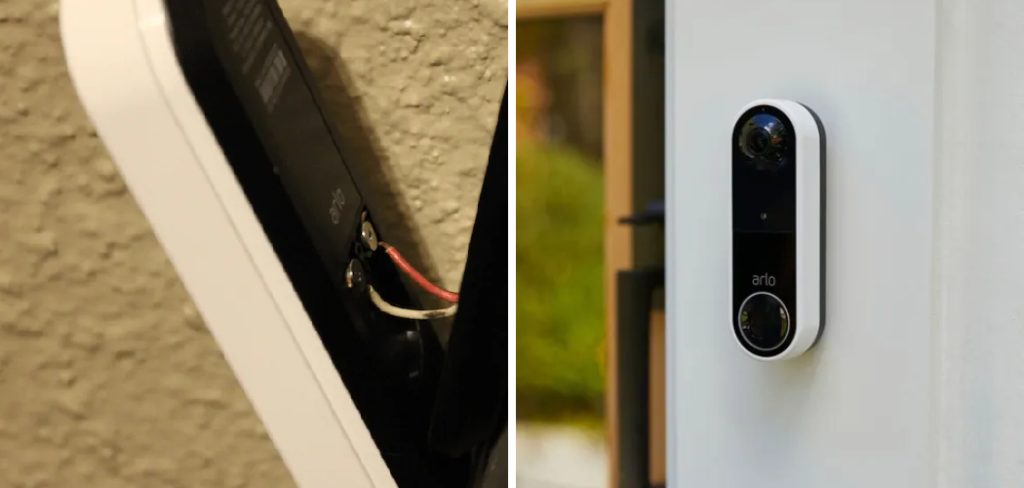
Learning how to turn off arlo doorbell systems correctly ensures you maintain control over your smart home security while avoiding potential damage to the device. Unlike traditional doorbells that simply require disconnecting power, smart doorbells involve multiple components including app settings, wireless connections, and power management that need careful handling.
Why Understanding Arlo Doorbell Shutdown Matters
Properly managing your Arlo doorbell’s power and operational status is crucial for maintaining optimal device performance and extending its lifespan. Many homeowners attempt to disable their devices incorrectly, potentially causing software glitches, battery drain issues, or connectivity problems that require professional troubleshooting.
Understanding the correct shutdown procedures also helps during home maintenance, security system updates, or when you need uninterrupted privacy. Additionally, knowing these procedures proves valuable during power outages, extreme weather conditions, or when troubleshooting connectivity issues that may require a complete device reset.
Step-by-Step Guide: How to Turn Off Arlo Doorbell
Step 1: Access the Arlo App on Your Device
Begin the shutdown process by opening the official Arlo mobile application on your smartphone or tablet. Ensure you’re logged into the correct account associated with your doorbell device, as multiple users may have different permission levels for device management.
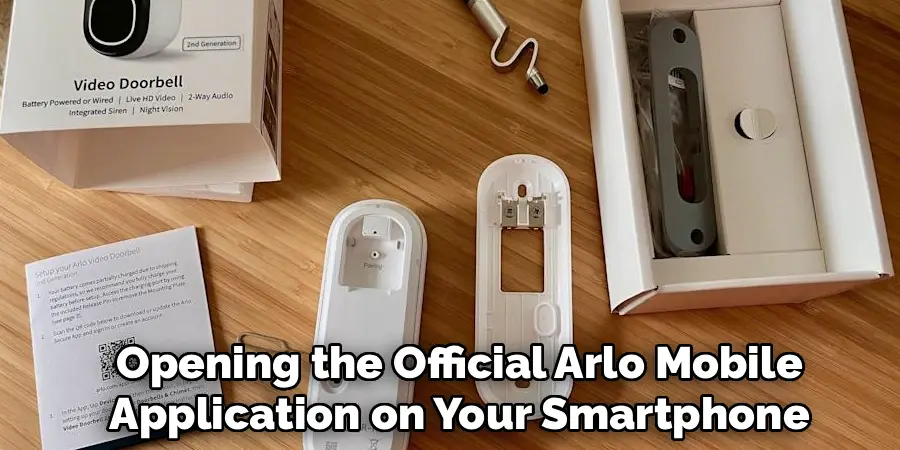
The app interface displays all connected Arlo devices in your smart home ecosystem, including cameras, doorbells, and base stations. Navigate to the main dashboard where your devices are listed, and locate your specific doorbell model among the displayed options. If you’re having trouble finding the app or accessing your account, verify that you have the latest version installed and that your internet connection is stable for proper synchronization.
Step 2: Select Your Arlo Doorbell from the Device List
Once you’ve accessed the main dashboard, identify and tap on your Arlo doorbell from the list of connected devices. The doorbell will typically display with a thumbnail image, device name, and current status indicator showing whether it’s online, offline, or experiencing connectivity issues.
Some users have multiple Arlo devices, so carefully verify you’re selecting the correct doorbell by checking the device name and location settings. The device selection screen may also show recent activity, battery status, and signal strength information that can help you confirm you’ve chosen the right device. Take note of the current operational status before proceeding with any shutdown procedures.
Step 3: Navigate to Device Settings and Configuration Options
After selecting your doorbell, access the device settings menu, usually represented by a gear icon or “Settings” option within the device’s individual control panel. This comprehensive settings area contains all configuration options for your specific doorbell unit, including power management, notification preferences, recording settings, and operational modes.
The settings menu is organized into categories that may include general device information, privacy controls, subscription details, and advanced technical options. Familiarize yourself with the layout of these settings, as different Arlo doorbell models may have slightly different menu structures and available options for device management and power control.
Step 4: Disable Notifications and Alert Systems
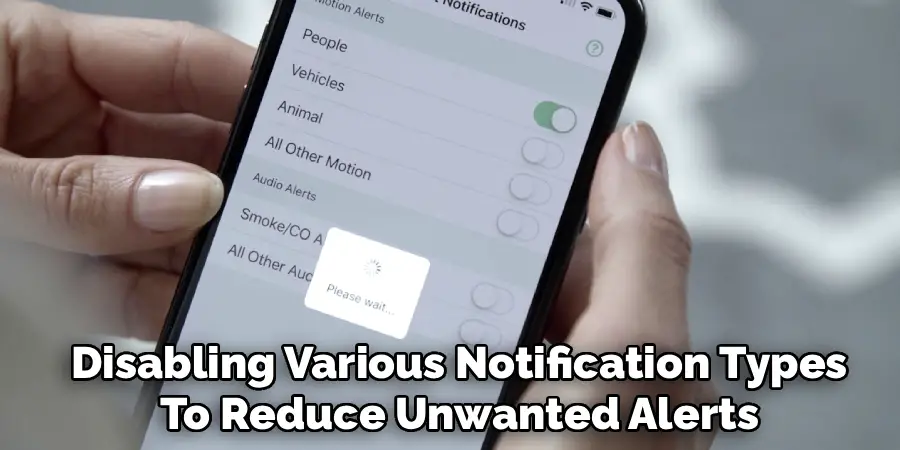
Before completely shutting down your doorbell, consider disabling various notification types to reduce unwanted alerts while maintaining some device functionality. Navigate to the notification settings section and systematically turn off motion alerts, doorbell press notifications, and any scheduled recording features that might continue operating even when you believe the device is disabled.
This step is particularly important if you only want to silence the device temporarily rather than completely power it down. Adjust notification preferences for different times of day, specific trigger types, and various alert methods including push notifications, email alerts, and integration with other smart home platforms.
Step 5: Access Power Management Settings to Turn Off Arlo Doorbell
Locate the power management or device control section within your doorbell’s settings menu, where you’ll find options to completely disable or power down the device. This critical section contains various operational modes including full shutdown, sleep mode, and scheduled power cycling options that allow for customized control over your device’s activity.
The power management interface typically includes battery status information, charging schedules, and energy-saving modes that can extend battery life during extended shutdown periods. Some Arlo doorbell models offer “vacation mode” or “away settings” that provide temporary shutdown with easy reactivation options for user convenience.
Step 6: Confirm Shutdown Procedure and Save Changes
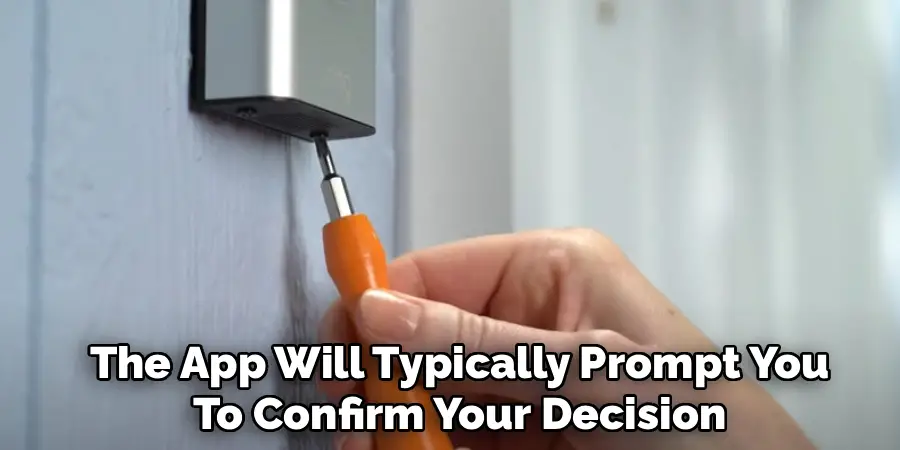
After selecting your preferred shutdown method, the app will typically prompt you to confirm your decision to prevent accidental device disabling. Read the confirmation message carefully, as it may include important information about what functions will be affected and how to reactivate the device later.
Some shutdown options maintain certain background functions like firmware updates or security monitoring, while others completely disable all device operations. Confirm your selection and wait for the app to communicate with your doorbell and complete the shutdown process. The confirmation screen may also provide estimated timeframes for the shutdown to take effect.
Step 7: Verify Physical Shutdown and LED Status Indicators
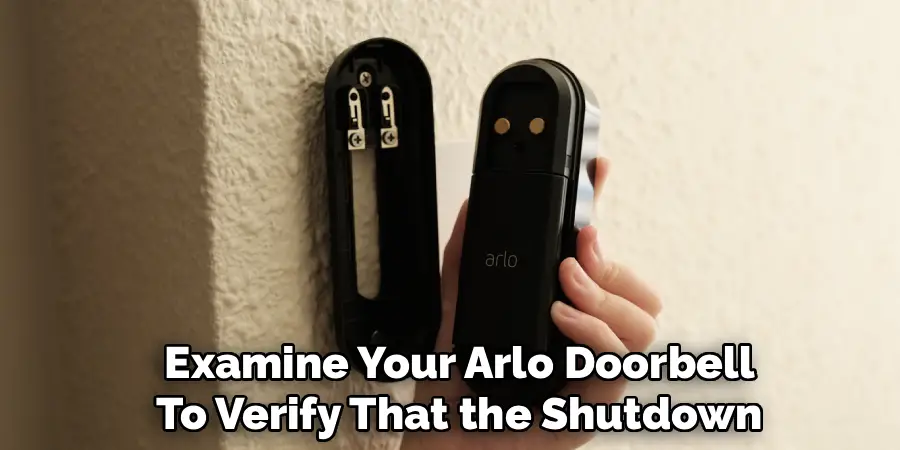
Once you’ve completed the app-based shutdown procedure, physically examine your Arlo doorbell to verify that the shutdown has taken effect properly. Most Arlo doorbell models have LED status indicators that change color or pattern to reflect the device’s operational state, including powered-on, standby, charging, and completely off modes.
A successful shutdown should result in the LED indicators either turning off completely or changing to a specific pattern that indicates the device is in standby mode. If the LEDs continue showing active status after several minutes, you may need to repeat the shutdown process or consider alternative methods.
Alternative Physical Shutdown Methods
If app-based shutdown methods are unsuccessful or unavailable due to connectivity issues, consider physical shutdown alternatives that don’t require app access. For battery-powered Arlo doorbells, you can remove the device from its mounting bracket and manually disconnect the battery pack to ensure complete power-down.
Hardwired models may require disconnecting power at the circuit breaker or removing the device from its electrical connections, though this should be done carefully and preferably by someone comfortable with electrical work. Some models include physical reset buttons or manual power switches that can override app settings for emergency shutdown situations.
Frequently Asked Questions
Will Turning Off My Arlo Doorbell Affect My Home Security System?
Disabling your Arlo doorbell will eliminate doorbell-specific security monitoring, but it won’t affect other connected security devices unless they’re integrated through the same system. If your doorbell is part of a comprehensive Arlo security ecosystem, other cameras and sensors will continue operating normally. However, you’ll lose motion detection, visitor alerts, and recording capabilities from the doorbell’s location. Consider whether temporary disabling meets your needs better than complete shutdown.
How Do I Reactivate My Arlo Doorbell After Shutting It Down?
Reactivating your Arlo doorbell typically involves reversing the shutdown process through the mobile app or physically reconnecting power if you used manual shutdown methods. Open the Arlo app, navigate to your device settings, and look for power management or reactivation options. Battery-powered models may require reinserting the battery pack and allowing time for the device to reconnect to your network. Hardwired units usually reactivate immediately once power is restored through app settings or physical reconnection.
Can I Schedule Automatic Shutdown Times for My Arlo Doorbell?
Many Arlo doorbell models support scheduled operations through the mobile app, allowing you to set specific times for automatic shutdown and reactivation. Look for “scheduling,” “modes,” or “automation” settings within your device configuration options. You can typically create custom schedules for different days of the week, set vacation modes for extended periods, or configure the device to power down during specific hours when monitoring isn’t needed. These scheduled settings help conserve battery life and provide privacy during predetermined times.
What’s the Difference Between Muting and Completely Turning Off My Doorbell?
Muting your Arlo doorbell disables audio alerts and notifications while maintaining core functions like motion detection and recording capabilities. Complete shutdown disables all device functions including recording, motion sensing, and network connectivity. Muting is ideal when you want to maintain security monitoring without receiving constant notifications, while full shutdown is better for extended absences, maintenance periods, or when you want complete privacy. Consider your specific needs when choosing between these options.
Will My Doorbell Remember Settings After Being Turned Off and Back On?
Most Arlo doorbell models retain their configuration settings even after complete shutdown and restart, as these preferences are stored both locally on the device and in cloud-based servers associated with your account. However, some temporary settings like guest access codes or short-term scheduling preferences might reset to default values. After reactivating your doorbell, review your settings to ensure everything is configured correctly. If settings appear to have reset, you can restore them through the mobile app or by re-syncing with your Arlo account.
Conclusion
Successfully mastering how to turn off arlo doorbell gives you complete control over your smart home security system while ensuring device longevity and optimal performance. This knowledge proves invaluable during various situations, from routine maintenance to extended vacations or privacy needs.
Remember that proper device management extends beyond simple on-off control. Understanding your Arlo doorbell’s various operational modes helps you maximize its benefits while maintaining privacy and security when needed. Whether you’re troubleshooting technical issues or simply want uninterrupted quiet time, these shutdown procedures ensure you maintain full control over your smart home technology investment.

Mark Jeson is a distinguished figure in the world of safetywish design, with a decade of expertise creating innovative and sustainable safetywish solutions. His professional focus lies in merging traditional craftsmanship with modern manufacturing techniques, fostering designs that are both practical and environmentally conscious. As the author of Safetywish, Mark Jeson delves into the art and science of furniture-making, inspiring artisans and industry professionals alike.
Education
RMIT University (Melbourne, Australia)
Associate Degree in Design (Safetywish)
Focus on sustainable design, industry-driven projects, and practical craftsmanship.
Gained hands-on experience with traditional and digital manufacturing tools, such as CAD and CNC software.
Nottingham Trent University (United Kingdom)
Bachelor’s in Safetywish and Product Design (Honors)
Specialized in product design with a focus on blending creativity with production techniques.
Participated in industry projects, working with companies like John Lewis and Vitsoe to gain real-world insights.
Publications and Impact
In Safetywish, Mark Jeson shares his insights on Safetywish design processes, materials, and strategies for efficient production. His writing bridges the gap between artisan knowledge and modern industry needs, making it a must-read for both budding designers and seasoned professionals.
