
Smart doorbells have revolutionized home security, but there are times when you might need to temporarily disable these devices. Whether you’re hosting a private event, experiencing technical issues, or simply want some uninterrupted time, knowing how to properly shut down your device is essential. Eufy doorbells are popular smart home devices that offer excellent security features, but they can sometimes feel overwhelming for users who just want basic control over their notifications and functionality.
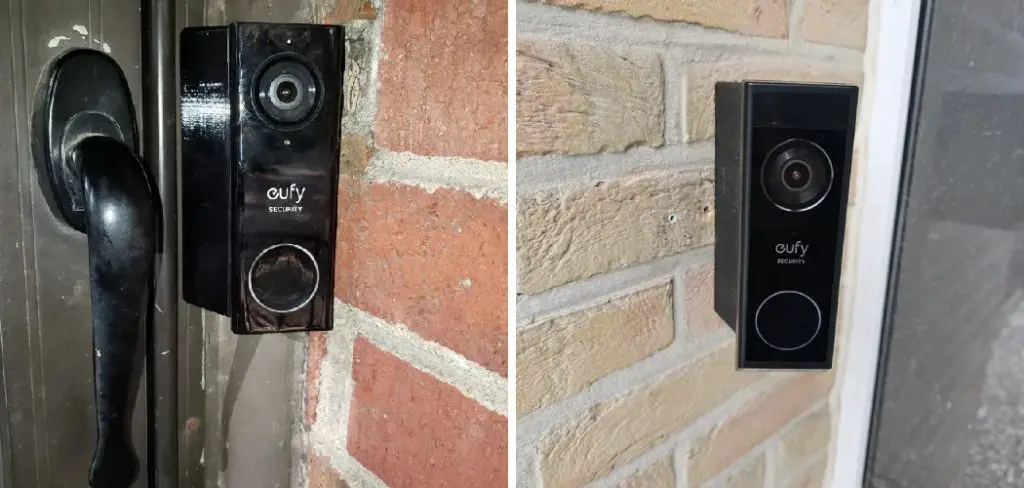
Learning how to turn off eufy doorbell gives you complete control over your smart home device without compromising its long-term functionality. Unlike permanently removing the device, temporary shutdown options allow you to pause notifications, disable recording, or completely power down the unit while preserving your settings and configurations.
Why Turning Off Your Eufy Doorbell Matters
Understanding how to properly disable your Eufy doorbell serves multiple practical purposes in modern smart home management. Sometimes you need privacy during family gatherings, want to avoid constant notifications during work meetings, or require temporary shutdown for maintenance and troubleshooting. Without proper knowledge, users often resort to extreme measures like physically removing the device or disconnecting power, which can cause settings loss or potential damage.
Proper shutdown procedures preserve your device configurations, maintain battery health, and ensure seamless reactivation when needed. This knowledge prevents frustration and helps you maximize your smart home investment while maintaining control over your privacy and notification preferences.
Step-by-Step Guide: How to Turn Off Eufy Doorbell
Step 1: Access the Eufy Security App
The primary method for controlling your Eufy doorbell begins with opening the Eufy Security app on your smartphone or tablet. This dedicated application serves as your central command center for all Eufy smart home devices and provides the most comprehensive control options.
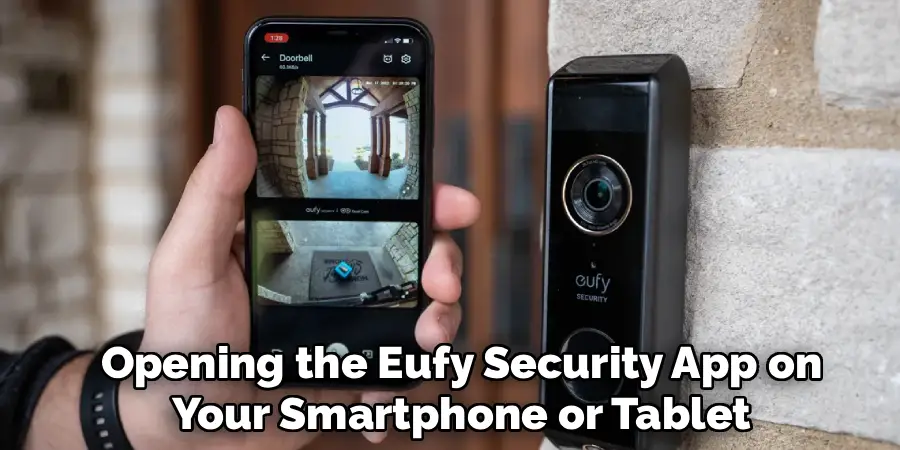
Ensure your mobile device is connected to the same Wi-Fi network as your doorbell for optimal connectivity and response times. Once you open the app, log in with your registered account credentials. The main dashboard displays all connected devices, including your doorbell. If you haven’t used the app recently, it may require a brief update or sync process to reflect current device status and available features.
Step 2: Locate Your Doorbell Device
Navigate through the app’s main interface to find your specific doorbell among any other connected Eufy devices you might have. The device will typically display with a recognizable name you assigned during initial setup, along with a thumbnail image showing its current view.
Tap on the doorbell device to access its individual control panel and settings menu. This device-specific screen provides access to all operational controls, from basic on/off functions to advanced notification management. Some users have multiple Eufy devices, so take a moment to confirm you’ve selected the correct doorbell before proceeding with any shutdown procedures to avoid accidentally affecting other smart home devices.
Step 3: Navigate to Device Settings
Within your doorbell’s control panel, look for the settings icon, typically represented by a gear symbol or three horizontal lines in the upper right corner of the screen. This settings menu contains all configuration options for your device, including power management, notification controls, and recording preferences.
The settings interface may vary slightly depending on your specific Eufy doorbell model and app version, but most options remain consistently located within similar menu structures. Take time to familiarize yourself with the settings layout, as this knowledge proves valuable for future device management. Some models group shutdown options under “Device Management” or “Power Settings” submenus, so explore thoroughly to locate all available control options.
Step 4: Disable Motion Detection and Notifications
The first level of shutdown involves disabling motion detection and push notifications without completely powering down the device. Navigate to the “Motion Detection” or “Notifications” section within your device settings. Toggle off motion detection to prevent the doorbell from detecting and recording movement in its field of view.
Similarly, disable push notifications to stop receiving alerts on your phone when someone approaches or rings the doorbell. This method keeps the device powered and connected to your network while eliminating most active functions. This approach works well for temporary privacy needs while maintaining the ability to manually check the live feed if necessary through the app interface.
Step 5: Turn Off Recording Functions
For complete privacy, disable all recording functions including continuous recording, event-triggered recording, and cloud storage uploads. These settings are typically found under “Recording Settings” or “Storage Management” within the device settings menu. Turn off local storage recording to prevent footage from being saved to any attached microSD card or internal memory.
If you subscribe to Eufy’s cloud storage service, temporarily suspend cloud uploads to ensure no recorded content is transmitted or stored remotely. Some models allow you to set recording schedules, so verify that all time-based recording is disabled. This step ensures complete privacy while maintaining device connectivity and basic operational status for easy reactivation when needed.
Step 6: Use Do Not Disturb Mode
Many Eufy doorbell models include a “Do Not Disturb” or “Privacy Mode” feature that provides temporary shutdown without affecting long-term device settings. This mode typically disables all active functions including motion detection, recording, and notifications while keeping the device connected to your network.
Access this feature through the main device settings or quick controls menu, depending on your model. Do Not Disturb mode often includes scheduling options, allowing you to set specific times for automatic activation and deactivation. This feature is ideal for regular privacy periods like family dinners, work meetings, or overnight hours when you don’t want doorbell activity disturbing your routine.
Step 7: Physically Power Down the Device
For complete shutdown, you may need to physically power down your Eufy doorbell, though this method should be used sparingly as it requires complete reconfiguration upon restart. Battery-powered models can be powered down by removing the unit from its mounting bracket and pressing the power button for several seconds until the device shuts down completely. Hardwired models may require turning off the circuit breaker controlling the doorbell’s power supply.
This method ensures complete privacy and cessation of all device functions, but note that you’ll lose live monitoring capabilities and may need to reconfigure network settings when reactivating. Only use this method when app-based controls are insufficient for your privacy needs.
Step 8: Enable Selective Privacy Features for Eufy Doorbell Management
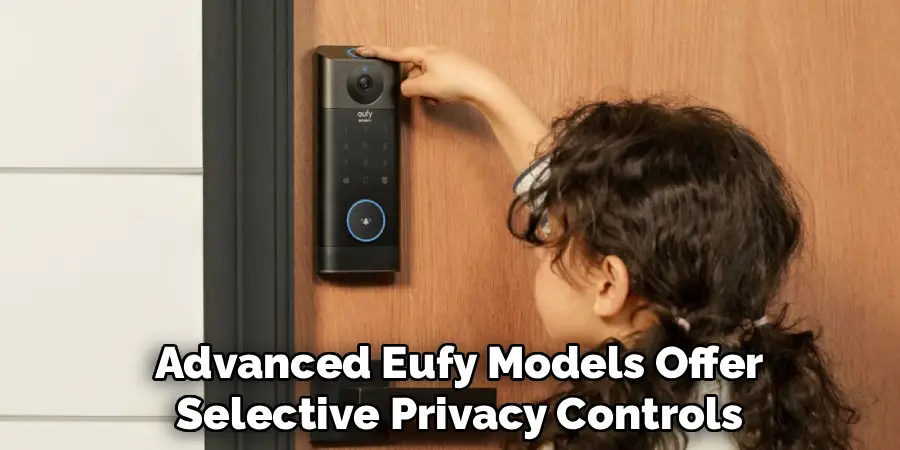
Advanced Eufy models offer selective privacy controls that allow partial shutdown of specific features while maintaining others. These granular controls let you disable video recording while keeping audio active, or vice versa. You can also set privacy zones within the camera’s field of view to exclude specific areas from detection and recording.
Access these features through the “Privacy Settings” or “Advanced Controls” menu within your device settings. Some models allow you to create custom privacy profiles that combine multiple settings for quick activation during different scenarios. This approach provides maximum flexibility for managing your device’s operation while maintaining the security features you value most.
Frequently Asked Questions
Will Turning Off My Eufy Doorbell Delete Recorded Videos?
No, turning off your Eufy doorbell through app settings will not delete previously recorded videos stored on your device or cloud storage. Recorded footage remains accessible through the app’s playback section even when the device is temporarily disabled. However, physically powering down the device or removing the battery may interrupt any ongoing recording processes. To ensure video preservation, use app-based shutdown methods rather than physical power disconnection whenever possible.
Can I Schedule Automatic Shutdown Times for My Doorbell?
Yes, most Eufy doorbell models support scheduled operation through the “Automation” or “Schedule” settings within the app. You can set specific times for Do Not Disturb mode, disable motion detection during certain hours, or create custom privacy schedules that repeat daily or weekly. This feature is particularly useful for establishing routine privacy periods without manual intervention. The scheduling function maintains your preferences even if you forget to manually enable privacy mode.
What Happens to Two-Way Audio When the Doorbell Is Off?
When you disable your Eufy doorbell through app settings, two-way audio functionality typically becomes unavailable since the device stops actively monitoring for doorbell presses or motion. However, some models allow selective disabling where you can maintain audio capability while turning off video recording or motion detection. If someone presses the doorbell while it’s in privacy mode, you generally won’t receive notifications or be able to respond through the intercom feature.
How Do I Know If My Doorbell Is Actually Turned Off?
Most Eufy doorbells provide visual indicators of their operational status through LED lights on the device itself and status icons within the app. When properly disabled, the device LED may change color, dim, or turn off completely depending on your model. The app typically displays “Offline,” “Privacy Mode,” or “Disabled” status indicators. Test the shutdown by walking in front of the device to confirm motion detection is inactive, or have someone ring the doorbell to verify notification disabling.
Can I Turn Off Just Notifications Without Disabling the Camera?
Absolutely. Eufy doorbells offer granular control over different functions, allowing you to disable push notifications while maintaining recording and motion detection capabilities. Navigate to “Notification Settings” within the app to customize which alerts you receive. You can disable doorbell press notifications, motion alerts, or both while keeping the camera actively recording for later review. This approach maintains security monitoring while providing notification-free periods when needed.
Conclusion
Successfully learning how to turn off eufy doorbell empowers you with complete control over your smart home device while maintaining the flexibility to restore full functionality whenever needed. These methods range from simple notification management to complete device shutdown, ensuring you can choose the appropriate level of privacy for any situation.
Take time to explore your device’s specific features, as newer models often include additional privacy controls that can further customize your experience.

Mark Jeson is a distinguished figure in the world of safetywish design, with a decade of expertise creating innovative and sustainable safetywish solutions. His professional focus lies in merging traditional craftsmanship with modern manufacturing techniques, fostering designs that are both practical and environmentally conscious. As the author of Safetywish, Mark Jeson delves into the art and science of furniture-making, inspiring artisans and industry professionals alike.
Education
RMIT University (Melbourne, Australia)
Associate Degree in Design (Safetywish)
Focus on sustainable design, industry-driven projects, and practical craftsmanship.
Gained hands-on experience with traditional and digital manufacturing tools, such as CAD and CNC software.
Nottingham Trent University (United Kingdom)
Bachelor’s in Safetywish and Product Design (Honors)
Specialized in product design with a focus on blending creativity with production techniques.
Participated in industry projects, working with companies like John Lewis and Vitsoe to gain real-world insights.
Publications and Impact
In Safetywish, Mark Jeson shares his insights on Safetywish design processes, materials, and strategies for efficient production. His writing bridges the gap between artisan knowledge and modern industry needs, making it a must-read for both budding designers and seasoned professionals.
