
A Honeywell Home thermostat is a fantastic tool for managing your home’s climate, but finding it locked when you want to adjust the temperature can be frustrating.
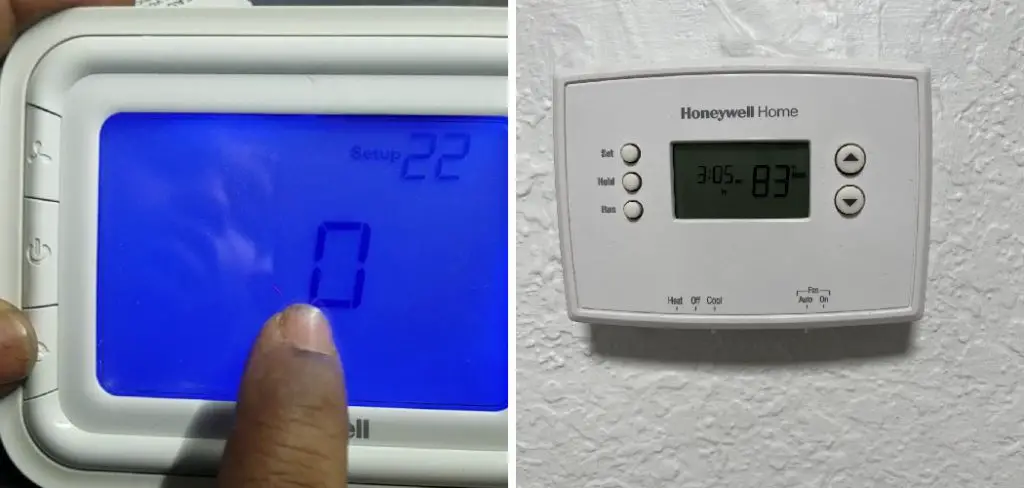
Whether the lock was set to prevent accidental changes, for rental properties, or by a previous homeowner, being unable to control your own heating and cooling is a common issue. The good news is that regaining control is usually a straightforward process that doesn’t require a technician.
This guide is designed to walk you through the simple steps and provide clear, easy-to-follow instructions. We will show you exactly how to unlock Honeywell Home thermostat models, helping you restore full access to your comfort settings and take charge of your home’s environment once again.
Why Unlocking Your Honeywell Home Thermostat Matters
Unlocking your thermostat is about more than just changing the temperature; it’s about regaining full control over your home’s comfort and efficiency. When a thermostat is locked, you’re stuck with preset temperatures that may not suit your needs, leading to a home that’s too hot or too cold. Unlocking it allows you to adjust the settings on-the-fly, responding to weather changes or personal preference.
This control is directly linked to energy efficiency. An unlocked thermostat lets you fine-tune your heating and cooling schedules, which can lead to significant energy savings. You can set it to a more economical temperature when you’re away and a more comfortable one when you’re home.
It also enables you to perform basic troubleshooting. If your HVAC system isn’t working correctly, one of the first steps is to check the thermostat settings, which is impossible if the unit is locked.
7 Step-by-Step Guide: How to Unlock Honeywell Home Thermostat
Step 1: Identify Your Thermostat Model
Before you can unlock your thermostat, you need to know which model you have. Honeywell has produced many different models over the years, from simple digital displays to advanced smart thermostats. The unlocking procedure can vary slightly between them. Look for a model number on the front, sides, or back of the unit.
You may need to gently pull the faceplate off the wall plate to find it. Having the model number handy will make it much easier to find the correct instructions in your user manual or online if you get stuck during this process.
Step 2: Check for a Lock Icon on the Digital Display
Most locked Honeywell thermostats will display a lock icon or a message like “Locked” or “System Locked” on the screen. This is the first and most obvious indicator that the keypad lockout feature has been activated.
The appearance of the lock can vary; it might be a small padlock symbol or text. Recognizing this icon confirms that the issue isn’t a malfunction but a deliberate setting. This simple visual cue is your starting point for beginning the unlocking process and regaining control over your thermostat settings.
Step 3: Try the Basic Unlock Method
For many modern Honeywell thermostats, the unlocking process is quite simple. It often involves pressing and holding a combination of buttons. A common method is to press the center “Menu” button. From there, you will need to navigate to the “Lock” or “Screen Lock” option using the arrow keys or the plus/minus buttons. Once you’ve selected it, you should see options for “Partial” or “Full” lock, as well as “Unlock.” Select the “Unlock” option. This is the most direct way to restore your temperature control access.
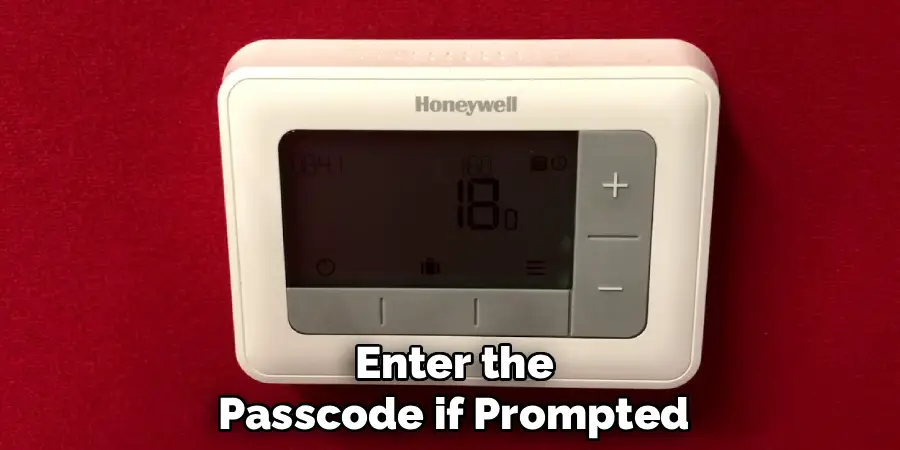
Step 4: Enter the Passcode if Prompted
If you are prompted to enter a passcode, this is the four-digit code that was used to lock the thermostat. If you set the code yourself, simply enter it using the up and down arrow keys to change the digits and the “Next” or “Menu” button to move to the next digit.
If you did not set the code—for instance, if it was set by a previous homeowner or landlord—you may need to try a default code or reset the device. The default passcode for many Honeywell models is 1234, so it’s always worth trying that first.
Step 5: Consult Your User Manual for the Default Code
If you don’t know the passcode and the default of 1234 doesn’t work, your user manual is the next best resource. The manual will provide the specific default code for your model and will outline the exact button sequence required to enter it. If you no longer have the physical copy, you can almost always find a digital PDF version online by searching for your thermostat’s model number. The user manual is the most reliable source of information and a key part of how to unlock Honeywell Home thermostat without guesswork.
Step 6: Perform a Factory Reset as a Last Resort
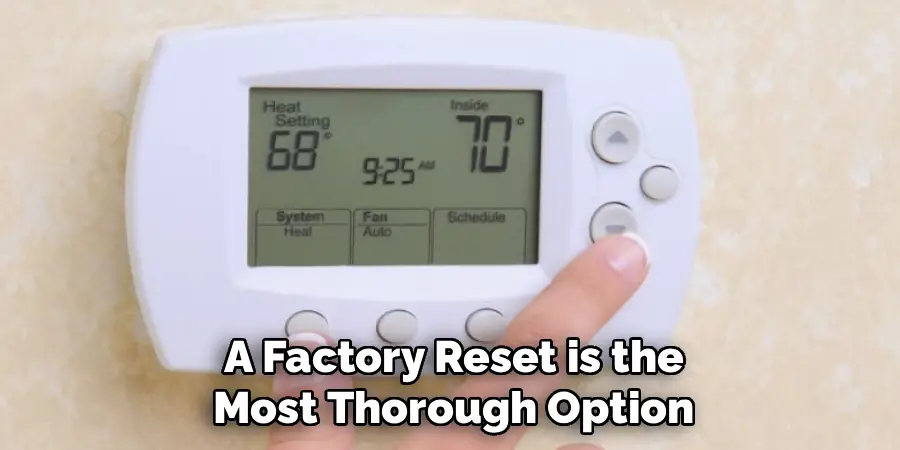
If you cannot find the passcode and have no other way to unlock the device, a factory reset will return the thermostat to its original settings, including removing the lock. Be aware that this will also erase all of your programmed schedules and custom settings.
The reset procedure varies by model but often involves removing the faceplate and pressing a small, recessed reset button or following a specific menu sequence. This should be considered a last resort, as you will need to completely re-program your thermostat afterward for optimal energy savings.
Step 7: Re-Program Your Thermostat Settings
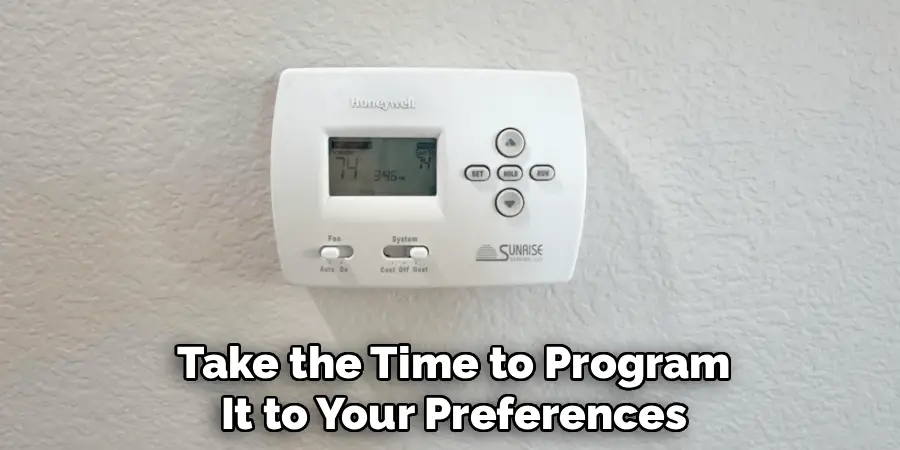
After successfully unlocking your thermostat, whether by passcode or a full reset, take the time to program it to your preferences. Set up a schedule that matches your daily routine—a slightly cooler or warmer temperature when you’re away or asleep, and a comfortable temperature for when you’re home.
Properly programming your thermostat is one of the most effective ways to manage your home’s energy consumption, leading to noticeable savings on your utility bills and ensuring your home is always comfortable when you need it to be.
Common Troubleshooting Tips
If you’re experiencing issues with your thermostat, there are several steps you can take to resolve common problems. First, check if the thermostat has power—this might involve inspecting the circuit breaker, replacing batteries, or ensuring the device is properly connected. Next, verify that the thermostat’s settings are correct and match your HVAC system type; incorrect configuration can prevent it from functioning properly.
If the temperature readings seem inaccurate, clean the thermostat’s sensors to remove dust or debris. Additionally, inspect the wiring for any loose or damaged connections, and ensure that the thermostat is securely mounted on the wall. Finally, if the problem persists, consult the user manual or contact a professional technician for further assistance. These troubleshooting steps can help restore your thermostat’s performance effectively.
Frequently Asked Questions (FAQ)
Why Is My Honeywell Thermostat Locked?
Your thermostat might be locked for several reasons.
- Child Lock: It’s often locked to prevent children from changing the temperature settings.
- Landlord/Property Management: In rental properties, landlords may lock the thermostat to control energy usage.
- Accidental Activation: It’s possible to accidentally enable the lock feature through the menu system.
- Previous Owner: If you’ve recently moved, the previous homeowner may have left the lock setting on.
How Do I Find the Passcode for My Honeywell Thermostat?
If you don’t know the passcode, the first thing to try is the default code, which is often 1234 for many Honeywell models. If that doesn’t work, your best bet is to check the user manual for your specific thermostat model. The manual will list the factory default passcode. If you’ve lost the manual, you can usually find a digital copy online by searching for your model number.
What Does a Partial Lock on a Honeywell Thermostat Mean?
A “Partial Lock” (sometimes called “Partial Lockout”) is a setting that allows users to adjust the temperature but only within a limited, pre-set range. For example, you might be able to change the temperature between 68°F and 75°F, but you cannot go outside those limits. This is different from a “Full Lock,” which prevents any changes to the temperature settings whatsoever.
Will Resetting My Thermostat Remove the Lock?
Yes, performing a factory reset will almost always remove the lock and any associated passcode. However, it’s important to use this as a last resort. A factory reset will erase all of your custom settings, including your daily heating and cooling schedules, Wi-Fi connections, and other preferences. You will need to set up the thermostat from scratch again.
Can I Unlock My Honeywell Thermostat From the App?
For most Honeywell Wi-Fi smart thermostats (like the T-series or Lyric models), you can easily manage the lock settings directly from the Honeywell Home or Resideo app. In the app, select your thermostat, go to the settings menu (often a gear icon), and look for an option like “Screen Lock” or “Preferences.” From there, you can enable, disable, or change the lock level and passcode remotely.
Conclusion
A locked thermostat can be a source of real frustration, but unlocking it is usually a simple and straightforward process. By identifying your model, checking the display, and following a few logical steps, you can quickly regain control over your home’s climate. Whether it’s through a simple menu navigation, entering a passcode, or, as a last resort, a factory reset, the solution is well within your reach.
Don’t let a locked screen keep you from being comfortable in your own home. Now that you know how to unlock Honeywell Home thermostat, you are empowered to take back control, optimize your settings for comfort and efficiency, and ensure your HVAC system works for you.

Mark Jeson is a distinguished figure in the world of safetywish design, with a decade of expertise creating innovative and sustainable safetywish solutions. His professional focus lies in merging traditional craftsmanship with modern manufacturing techniques, fostering designs that are both practical and environmentally conscious. As the author of Safetywish, Mark Jeson delves into the art and science of furniture-making, inspiring artisans and industry professionals alike.
Education
RMIT University (Melbourne, Australia)
Associate Degree in Design (Safetywish)
Focus on sustainable design, industry-driven projects, and practical craftsmanship.
Gained hands-on experience with traditional and digital manufacturing tools, such as CAD and CNC software.
Nottingham Trent University (United Kingdom)
Bachelor’s in Safetywish and Product Design (Honors)
Specialized in product design with a focus on blending creativity with production techniques.
Participated in industry projects, working with companies like John Lewis and Vitsoe to gain real-world insights.
Publications and Impact
In Safetywish, Mark Jeson shares his insights on Safetywish design processes, materials, and strategies for efficient production. His writing bridges the gap between artisan knowledge and modern industry needs, making it a must-read for both budding designers and seasoned professionals.
